
Add Password to PDF Online
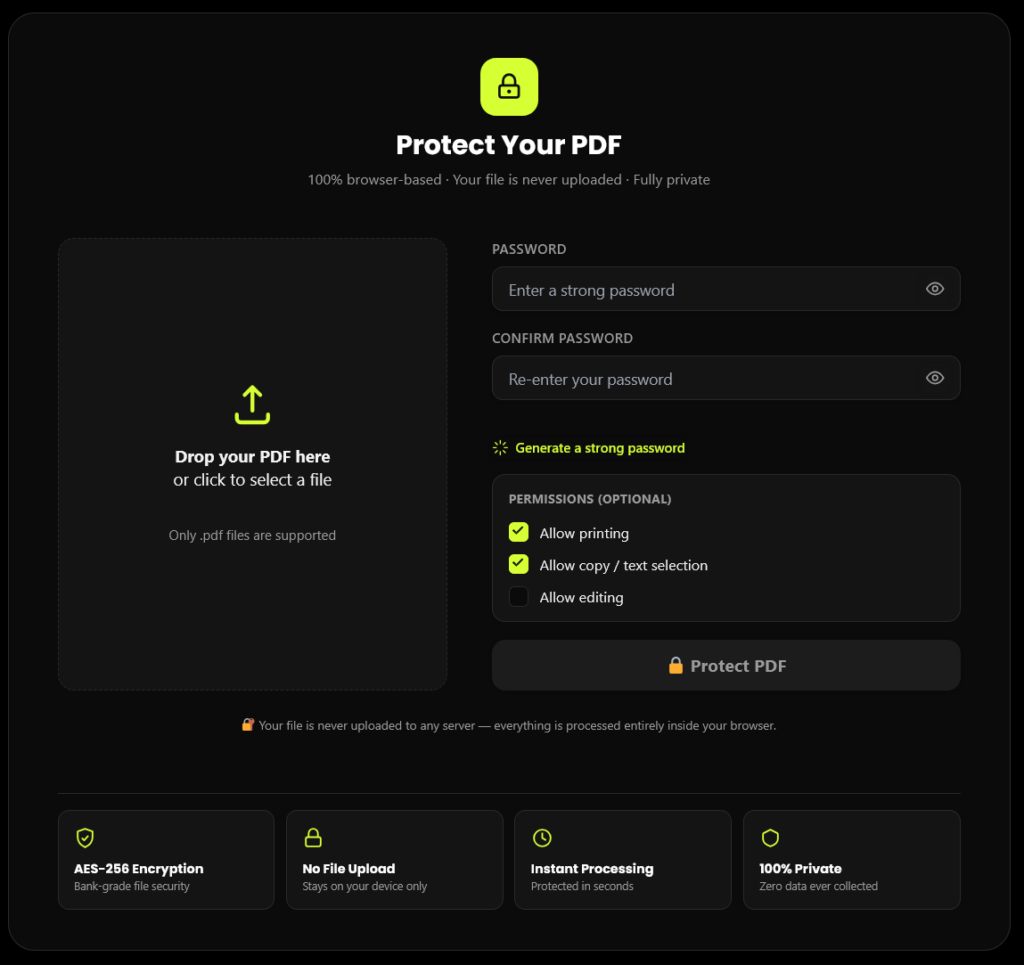
Add password to PDF online . This free tool encrypts your PDF with real AES-256 security — right inside your browser. No account, no upload, no waiting. Just drop your file, set a password, and download it protected in seconds.
Protect Your PDF
100% browser-based · Your file is never uploaded · Fully private
Drop your PDF here
or click to select a file
Your PDF has been protected successfully!
⬇ Download Protected PDF🔐 Your file is never uploaded to any server — everything is processed entirely inside your browser.
How to Add a Password to a PDF Online
Upload your PDF
Drag and drop the file, or click to select it from your device.
Set your password
Type a password and confirm it, or use the built-in strong password generator.
Choose permissions
Allow or block printing, copying, and editing.
Click “Protect PDF”
Your file is encrypted instantly, right in your browser.
Download
The password-protected PDF downloads straight to your device.
Why Use This PDF Password Tool
No Signup,
No Account Required
Most competing tools ask you to register or verify your email before letting you download your protected file. This tool skips all of that — add password to PDF online no signup, no login, no waiting.
100% Browser-Based —
Your File Never Leaves
Your Device
Your PDF is processed entirely on your own computer or phone using WebAssembly technology. It is never uploaded to a server.
Real AES-256
Encryption
This isn't a fake "lock" — it applies genuine AES-256 encryption, the same standard recommended by NIST and used across banking and government systems.
Full Permission
Control
Decide exactly what someone can do with your file once they have the password — allow or block printing, copying/text-selection, and editing independently.
Is It Safe to Add a Password to a PDF Online?
Yes — as long as the tool processes your file locally in the browser and never uploads it to a server, adding a password to a PDF online is completely safe. This tool uses WebAssembly to run a real PDF encryption engine (qpdf) directly on your device. Your file and password are never transmitted over the internet, so there's no exposure to server breaches, third-party access, or data retention policies you'd otherwise have to trust a company to honor.
Why Use This Tool to Add a Password to Your PDF Online
How does this compare with other popular tools? Take Smallpdf’s Protect PDF tool as an example. According to its own page, files are transferred over TLS, stored on its servers, and deleted after one hour, and the encryption used is AES 128-bit. This tool works differently: your PDF is encrypted inside your browser, so it is never uploaded or stored anywhere, and it applies AES-256 encryption.
Both tools let you add a password to a PDF online without installing software. The difference is where your file goes and how much control you get. Here you can also allow or block printing, copying, and editing separately from the open password, and there is no signup, watermark, or daily limit. If your PDF contains sensitive details such as IDs, contracts, or financial records, keeping the file on your own device is the safer choice.
More Free Tools You May Need
PDF to QR Code Converter
Turn your PDF into a scannable QR code, so people can open it from their phone without typing a link.
Explore toolImage to QR Code Generator
Convert any image into a QR code in seconds, with no signup, the same way this tool works.
Explore toolPdf from filler
Fill out PDF forms online in seconds. Add text to fields, complete documents, and download your filled PDF for free.
Browse all toolsUnlock PDF – Remove Password
Know the password but tired of typing it every time? Remove it from your PDF in seconds, with no signup.
Unlock PDFFAQ
Frequently Asked Questions
Is it safe to password protect a PDF online?
Yes — as long as the tool processes your file locally in your browser instead of uploading it to a server. This tool never sends your PDF anywhere, so there’s no risk of a server breach or third-party access, unlike most online PDF tools that upload your file first.
What happens if I forget the PDF password?
The file cannot be opened without it. Because the password is never stored anywhere — not even by this tool — there’s no way to recover it later, so save it somewhere secure like a password manager before closing the page.
Does adding a password change the PDF's content or formatting?
No. Password protection only controls access — it doesn’t alter the text, images, or layout of the document in any way. The file looks identical once opened with the correct password.
What's the difference between a PDF open password and a permissions password?
An open password controls who can view the file at all, while a permissions password (also called an owner password) controls what someone can do once it’s open — like printing, copying, or editing — even if they know how to open it.
Is this PDF password tool really free, with no signup?
Yes. There’s no account, no email, and no payment required — you can add a password to a PDF online with no signup, and there’s no daily limit or watermark either.
How strong is AES-256 encryption for PDFs?
AES-256 is the same encryption standard used by banks and government agencies, and it’s considered practically impossible to brute-force with current computing power — far stronger than the AES-128 used by many free PDF tools.