
Bulk HEIC to JPG Converter
Free & Unlimited
This bulk HEIC to JPG converter is free and lets you convert unlimited iPhone photos at once — no signup, no daily limit, and no watermark on your images. Simply drag in your HEIC files below and get JPG, PNG, or WebP files back in seconds. Every conversion happens locally in your browser, so your photos are never uploaded to any server.
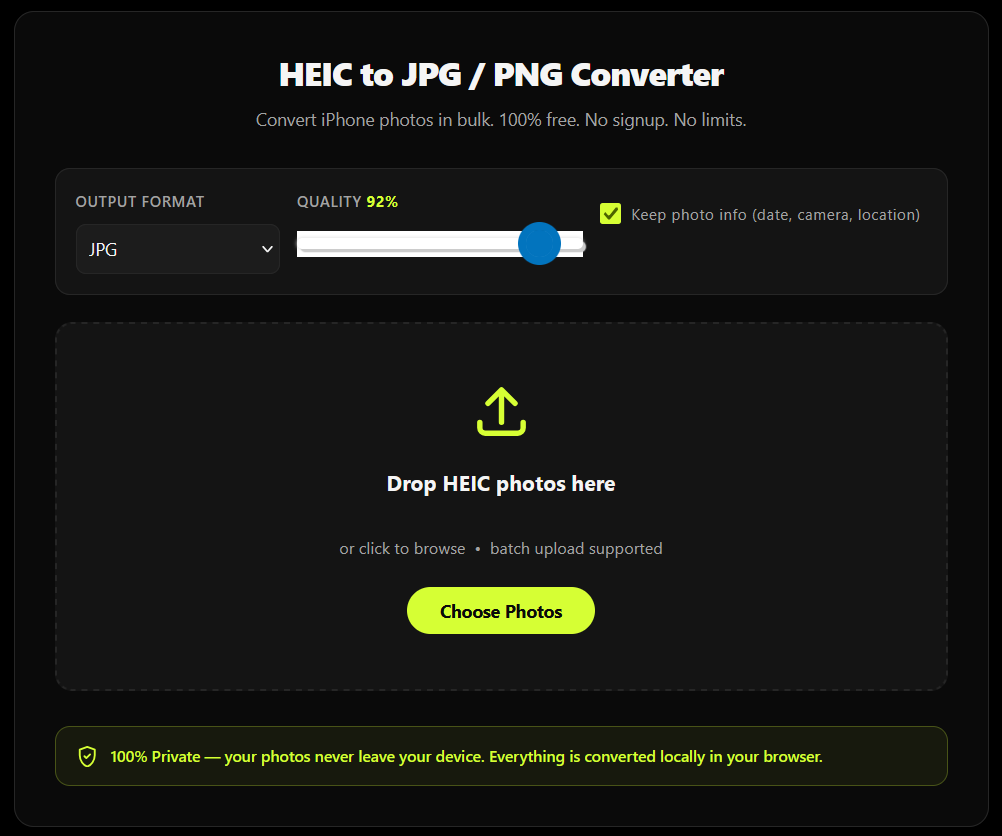
HEIC to JPG / PNG Converter
Convert iPhone photos in bulk. 100% free. No signup. No limits.
Drop HEIC photos here
or click to browse • batch upload supported
Why This Bulk HEIC to JPG Converter Is Different
Most “free” HEIC converters online cap you at 10–50 photos per day or hide batch conversion behind a signup wall. This tool has none of that.
Truly unlimited batch conversion
Convert 50, 100, or 500+ HEIC photos in one go, with no daily cap.
No signup, no email required
Start converting immediately.
No watermark
On any converted photo.
100% private
Photos are processed inside your browser and never touch a server.
Keeps your photo info
Camera details, date taken, and GPS location can be preserved on request (most competing tools strip this out).
Choose your output format
JPG, PNG, or WebP.
One-click ZIP download
For the whole batch.
How to Convert HEIC to JPG in Bulk (Step-by-Step)
Converting HEIC photos to JPG in bulk takes three steps: upload your files, pick a format and quality, then download everything as one ZIP.
Add your HEIC photos
Drag and drop them into the upload box, or click to browse and select multiple files at once (from your iPhone, AirDrop transfer, or a synced folder).
Choose your settings
Pick JPG, PNG, or WebP as the output format, adjust the quality slider, and decide whether to keep the original photo metadata (date, camera, location).
Convert and download
Click “Convert All,” then either download each photo individually or grab the entire batch as a single ZIP file.
HEIC to JPG, PNG or WebP — Choose Your Format
Not every photo needs to become a JPG. This tool also supports HEIC to PNG conversion for images that need transparency or lossless quality, and HEIC to WebP conversion for smaller, web-optimized files. JPG remains the best choice for maximum compatibility across Windows, Android, older software, and print services, while WebP is ideal if the photos are headed straight to a website.
JPG
Maximum compatibility across devices, software, and print services.
PNG
Ideal when transparency or lossless image quality is needed.
WebP
Great for smaller, web-optimized image files.
What Is a HEIC File?
HEIC (High Efficiency Image Container) is the default photo format used by iPhones running iOS 11 and later. It compresses images to roughly half the file size of a JPG at the same visual quality, which is great for saving storage on your phone — but many Windows PCs, Android devices, and websites still don't accept HEIC files directly, which is why converting to JPG is usually necessary.
iPhone Photo Format
Used by iPhones running iOS 11 and later.
Smaller File Size
Compresses images to roughly half the size of JPG.
Easy Compatibility
Convert to JPG when apps or websites don't support HEIC.
Why This Tool Is Better Than Other PDF Tools
Unlike many popular PDF platforms such as iLovePDF, and Adobe Acrobat Online, this tool freeconvertzo is designed with a simpler, privacy-first experience — so you can complete your PDF task without unnecessary signup steps, complicated interfaces, or waiting for cloud processing. Instead of sending your files to a remote server, browser-based processing can keep your documents on your own device, making the workflow faster, more private, and convenient. Whether you need to add a password, edit, convert, compress, or manage a PDF, this tool focuses on free access, no-watermark output, simple controls, and instant results without making users navigate through unnecessary features or account requirements.
FAQ
Frequently Asked Questions
What is a HEIC file?
HEIC (High Efficiency Image Container) is the default photo format used by iPhones and iPads running iOS 11 or later. It’s based on the HEIF standard and stores photos at roughly half the file size of a JPG at the same visual quality — great for saving space on your phone, but not always supported by other devices and websites.
What's the difference between HEIC and HEIF?
HEIF (High Efficiency Image File Format) is the overall container format standard, while HEIC is Apple’s specific implementation of it for photos. In everyday use the two terms are interchangeable — a file ending in .heic and one ending in .heif are handled the same way by this converter.
Why can't I open HEIC files on Windows or Android?
Windows and most Android devices don’t include native HEIC decoding by default, so the file simply won’t open or preview. Windows 10/11 can add support through a paid Microsoft extension, but converting the photo to JPG is a faster, free fix that works everywhere without installing anything.
Does converting HEIC to JPG reduce image quality?
At a high quality setting (90% or above), the difference between the original HEIC and the converted JPG is virtually invisible to the human eye. You will lose HEIC-exclusive extras like Live Photo motion data and depth-map information, since the JPG format doesn’t support them — but the visible photo itself stays sharp.
Can I convert HEIC to PNG or WebP instead of JPG?
Yes — this converter supports HEIC to PNG (best for images needing transparency or lossless quality) and HEIC to WebP (best for smaller, web-optimized files) in addition to standard JPG output. Just choose your preferred format from the dropdown before converting.
How do I convert multiple HEIC photos to JPG at once?
Select or drag in all your HEIC files together — this converter processes them as a batch automatically, with no limit on how many photos you add at one time. Once done, download each photo individually or grab the whole batch as a single ZIP file.