
Delete Multiple Pages from PDF at Once
Delete multiple pages from PDF at once — free, no signup, no watermark. Select any pages and remove them instantly in your browser. Try it now!
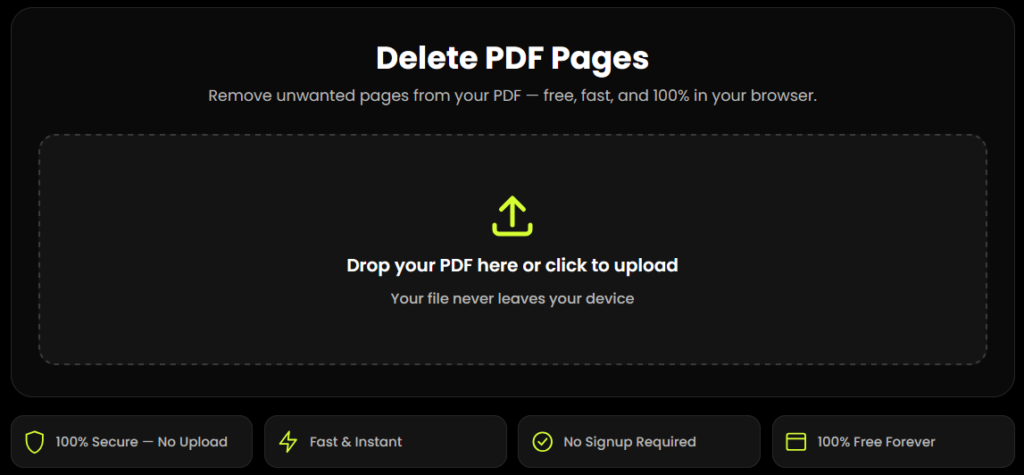
Delete PDF Pages
Remove unwanted pages from your PDF — free, fast, and 100% in your browser.
Your PDF is ready!
Why Delete Multiple PDF Pages at Once Instead of One by One?
Most free PDF tools online force you to delete pages individually or only support removing a single consecutive range. This tool is built specifically to delete multiple pages from a PDF at once — including non-consecutive pages (say, page 2, page 7, and page 15 in the same action) — so you're not repeating the same steps over and over on long documents like reports, scanned books, or contracts.
Common reasons people remove several pages together:
Cleaning up blank or scanned junk pages from a scanned document
Removing multiple confidential or internal-only pages before sharing a contract
Cutting several draft or duplicate pages out of a long report
Trimming a large PDF down before emailing it (attachment size limits)
Preparing a clean version of a textbook, notes, or presentation PDF for reuse
How to Delete Multiple Pages from a PDF at Once
Upload your PDF — drag and drop your file, or click to browse. The file loads directly in your browser; nothing is sent to a server.
Review the page thumbnails — every page in your document appears as a preview so you can confirm exactly what you're deleting.
Select every page you want to remove — click on as many pages as you like. Each selected page gets a red marker. Use "Select All" or "Clear" to speed this up on long documents.
Click "Delete Selected Pages" — all marked pages are removed together in a single action.
Download your new PDF — your file is rebuilt instantly with the original filename preserved (plus an "-edited" tag), ready to share or save.
Who Needs to Delete Multiple Pages from a PDF at Once?
Students
Remove cover pages, blank pages, and extra instructions from notes, assignments, and scanned study material before submitting or sharing.
Job Seekers
Trim extra pages from resumes, portfolios, and application packs so you send only what the employer asked for.
Freelancers & Small Businesses
Delete internal or confidential pages from contracts, invoices, and proposals before sending them to a client.
Office & Admin Teams
Clean up scanned documents, remove duplicate pages, and reduce long reports to the pages that matter.
Why This Is a Better Way to Delete Multiple PDF Pages at Once
Most online PDF tools upload your file to a remote server, ask you to sign up, or slow you down with extra steps. This tool works differently. Your PDF is opened and edited directly inside your browser, so your document never leaves your device. You can select any number of pages, including pages that are not next to each other, and delete them all in one action. There is no signup, no watermark on your download, and you can undo a selection before you save. The result is a faster, more private way to delete multiple pages from a PDF at once.
More Free Tools You Might Need
Finished editing your PDF? These free tools can help with your next task:
QR Code Generator
Turn any link, text, or contact detail into a scannable QR code in seconds.
Explore toolImage to QR Code Generator
Create a QR code and download it as an image for print or digital use.
Explore toolJPG to PDF Converter
Combine photos and scans into one PDF, then clean it up with this page-delete tool.
Explore toolWebP to JPG PNG Converter
Convert images between WebP, JPG, and PNG right in your browser.
Explore toolAI Flashcard Generator
Turn your notes or a PDF into study flashcards for free.
Explore toolAbout the PDF Format
PDF stands for Portable Document Format. It is an open format defined by the international standard ISO 32000-2, and it is designed so a document looks the same on any device. The PDF Association publishes free public resources for people who work with the format, and you can read a general history of PDF on Wikipedia.
Frequently Asked Questions
How do I delete multiple pages from a PDF at once?
Upload your PDF, click on every page thumbnail you want removed, then click “Delete Selected Pages.” All marked pages are removed together in a single action — no need to repeat the process page by page.
Can I delete non-consecutive pages from a PDF in one go?
Yes. You can select scattered pages — for example, page 2, page 7, and page 15 — and delete them all together in the same action, without deleting the pages in between.
Is it safe to delete PDF pages online, or does the file get uploaded somewhere?
With this tool, your PDF is never uploaded to a server — the entire process happens locally in your browser, so sensitive documents stay private on your device.
Can I undo a page deletion before saving the PDF?
Yes. Use the Undo button to reverse your last selection change before finalizing and downloading the edited PDF.
Why can't I delete pages from my PDF?
If a PDF has security restrictions (owner/permissions password) applied by whoever created it, page editing is blocked until that password is entered or removed. You’ll need permission from the document owner to modify a protected file.
Will removing pages break links or page references inside my PDF?
It can. If other pages contain internal links or a table of contents pointing to the pages you delete, those references may point to the wrong page afterward — it’s worth skimming the document after deletion to confirm everything still makes sense.