
Scanned PDF to Searchable PDF Converter
Free, Private & Instant
Convert scanned PDF to searchable PDF in seconds — upload your file, let the tool OCR every page, and download a version where every word is selectable, searchable, and copyable, with the page looking exactly the same. Everything runs in your browser: no server upload, no API key, no page limit.
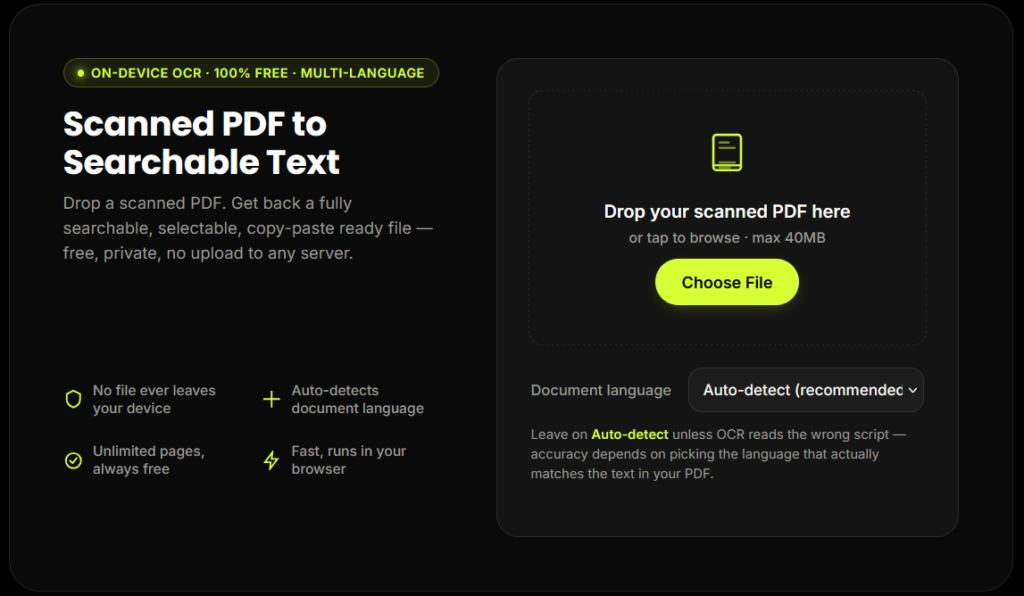
Scanned PDF to Searchable Text
Drop a scanned PDF. Get back a fully searchable, selectable, copy-paste ready file — free, private, no upload to any server.
Leave on Auto-detect unless OCR reads the wrong script — accuracy depends on picking the language that actually matches the text in your PDF.
Your PDF is now searchable
Pages processed · text layer added · ready to download.
Something went wrong
Please try again with a valid PDF file.
How to Convert a Scanned PDF to a Searchable PDF
(up to 40MB, unlimited pages).
and matches it to the right OCR language automatically, or choose
one manually from 13+ supported languages.
the document has been processed.
your original scan, but every word is now selectable, searchable,
and copyable.
and never leaves your device.
Why Convert a Scanned PDF to a Searchable PDF?
Find anything instantly
Ctrl+F works on contracts, invoices, notes, and reports instead of you scrolling page by page.
Copy and reuse text
Pull quotes, numbers, or clauses without retyping them.
Accessibility
Screen readers can finally read the document aloud for visually impaired users.
Smaller, cleaner archives
Searchable PDFs are easier to index, tag, and organize in document management systems.
Compliance-ready
Many legal and government workflows require text-searchable records, not flat images.
What Is the Difference Between a Scanned PDF and a Searchable PDF?
A scanned PDF is just a photograph of a page saved inside a PDF wrapper — it looks like text, but to a computer it's a picture, so you can't select, copy, or search anything in it. A searchable PDF has an invisible text layer sitting exactly on top of that same image, added through OCR (Optical Character Recognition), so Ctrl+F, copy-paste, and screen readers all work normally.
If you've ever opened a document and Ctrl+F returned nothing even though you can clearly see the word on the page, that PDF has no text layer — it needs OCR, not a different PDF reader.
Who Needs a Scanned PDF to Searchable PDF Converter?
Students & researchers
digitizing old textbooks, theses, or scanned journal articles
+Legal & HR teams
who need to search contracts, case files, and employee records by keyword
+Accountants & finance teams
turning scanned invoices and receipts into searchable archives
+Anyone with a phone-scanned document
that needs to be searchable, copyable, or read aloud
+Why This Tool Is Better Than Other PDF Tools
Unlike many popular PDF platforms such as iLovePDF, and Adobe Acrobat Online, this tool freeconvertzo is designed with a simpler, privacy-first experience — so you can complete your PDF task without unnecessary signup steps, complicated interfaces, or waiting for cloud processing. Instead of sending your files to a remote server, browser-based processing can keep your documents on your own device, making the workflow faster, more private, and convenient. Whether you need to add a password, edit, convert, compress, or manage a PDF, this tool focuses on free access, no-watermark output, simple controls, and instant results without making users navigate through unnecessary features or account requirements.
FAQ
Frequently Asked Questions
What is the difference between a scanned PDF and a searchable PDF?
A scanned PDF is just an image of a page with no readable text underneath, so you can’t select, copy, or search it. A searchable PDF has an invisible OCR-generated text layer sitting on top of that same image, which is what lets you use Ctrl+F, highlight text, and copy-paste normally. Search intent: definitional — highest-volume query in this niche, must be answered first.
How do I know if my PDF needs OCR?
Press Ctrl+F (or Cmd+F on Mac) and search for a word you can clearly see on the page — if nothing is found, or you can’t select the text with your cursor, the PDF has no text layer and needs OCR. Search intent: troubleshooting/diagnostic — very commonly searched before people even know OCR is the fix.
How accurate is OCR on scanned PDFs?
Accuracy depends mainly on scan quality — clean, high-resolution, well-lit scans typically produce very high accuracy, while blurry, skewed, or low-contrast scans reduce it. Choosing the correct document language (or using auto-detect) also significantly affects accuracy, since running the wrong language model on a page is the single biggest cause of garbled OCR text. Search intent: expectation-setting — helps reduce support questions and manages accuracy expectations honestly.
Which languages does this OCR tool support?
It supports 13+ languages — including English, Hindi, Bengali, Tamil, Telugu, Marathi, Gujarati, Kannada, Odia, Punjabi, Urdu, Arabic, French, and Spanish — with automatic language detection so you don’t have to guess. Selecting the wrong language for a document is the most common reason OCR results come out unreadable, so auto-detect exists specifically to prevent that. Search intent: feature-check — directly targets “hindi ocr pdf”, “multilingual ocr” style long-tail searches identified earlier.
Once converted, is the PDF fully editable, or just searchable?
It’s searchable and selectable, not directly editable — you can search, highlight, and copy the text, but you can’t type over or rewrite it in the same way as a Word document. If you need to edit the actual text (not just search or copy it), you’d export it to Word or another editable format after OCR. Search intent: expectation/clarification — “searchable vs editable” is a genuinely common point of confusion in real competitor FAQ content, and answering it prevents disappointed users and one-star reviews.
Can OCR read handwritten text in a scanned PDF?
OCR is built for printed or typed text and struggles with handwriting, especially cursive or messy handwriting — neat, block-letter handwriting has a much better chance of being read correctly than natural cursive. If a document is mostly handwritten, expect OCR to only partially succeed. Search intent: capability/limitation — sets honest expectations, which also improves trust signals for both users and AI answer engines that value accurate, non-oversold claims.