
Countdown Presentation Timer with Alerts
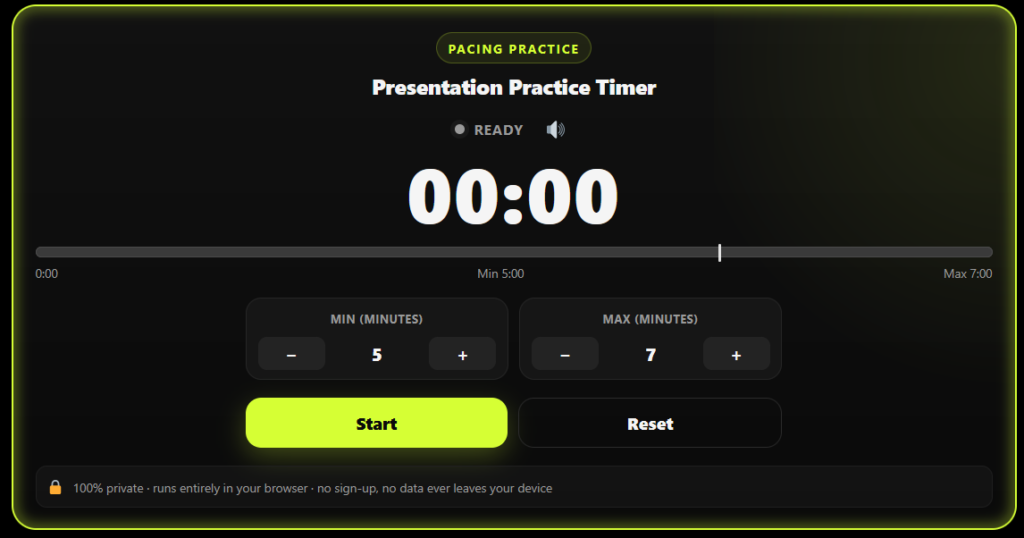
This countdown presentation timer with alerts helps you rehearse a talk, class presentation, or pitch inside an exact time window — like 5 to 7 minutes. It changes color automatically: green while on pace, yellow at your wrap-up zone, red at your limit. Free, no sign-up, runs entirely in your browser.
Presentation Practice Timer
What Is a Countdown Presentation Timer with Alerts?
This kind of presentation pacing timer does more than count down — it tells you, visually and audibly, whether you're ahead, on track, or over your allotted speaking time. Unlike a basic stopwatch or a plain PowerPoint countdown, this tool is built specifically for practice sessions where you're trying to hit a range of time (like "keep it between 5 and 7 minutes") rather than a single fixed number.
Most students, teachers, and public speakers are given a time window, not a single number — "your presentation should be 5 to 7 minutes," a professor might say. A countdown timer for presentations is built exactly for that scenario: it tracks both your minimum and maximum limits at once, so you know the moment you're allowed to finish and the moment you absolutely must stop.
How This Presentation Timer with Alerts Works
Set your target range.
Enter your minimum and maximum time (for example, 5 minutes minimum, 7 minutes maximum).
Press Start.
The timer begins tracking your elapsed speaking time in real time.
Watch the color cues.
(Under minimum)
(In range)
(Maximum reached)
Sound & vibration alerts.
You'll get an alert when you enter the wrap-up zone or hit your maximum time.
Reset and repeat.
Each attempt is logged so you can see whether you finished in range, under, or over — helping you track improvement across practice sessions.
Why Use a Presentation Timer with Alerts Instead of a Regular Timer?
A plain phone timer only tells you when time is completely up. By then, it's too late to adjust. A presentation timer with alerts gives you an early warning system instead:
- Two limits, not one — most tools track a single maximum; this one tracks your minimum and maximum together.
- Color-coded pacing — glance at the screen without breaking eye contact with your audience or notes.
- Sound + vibration cues — you'll feel the zone change even if you're not looking at the screen.
- No installation, no login — it works instantly in any browser, on any device.
- Private by design — nothing you type or practice is sent anywhere; it all stays on your device.
Who Should Use This Timer?
Built for anyone who needs to practice, rehearse, or manage presentation timing with confidence.
Students
Looking for a timer for class presentation practice with a strict word/time limit.
Public Speakers
Rehearsing a TEDx-style or conference talk and keeping every section within time.
Toastmasters Members
Practicing within official speech-length rules and improving presentation pacing.
Sales Teams
Rehearsing a pitch before a client meeting and keeping the presentation focused.
Teachers & Trainers
Timing student presentations live in class and keeping every presentation on schedule.
Why This Tool Is Better Than Other PDF Tools
Unlike many popular PDF platforms such as iLovePDF, and Adobe Acrobat Online, this tool freeconvertzo is designed with a simpler, privacy-first experience — so you can complete your PDF task without unnecessary signup steps, complicated interfaces, or waiting for cloud processing. Instead of sending your files to a remote server, browser-based processing can keep your documents on your own device, making the workflow faster, more private, and convenient. Whether you need to add a password, edit, convert, compress, or manage a PDF, this tool focuses on free access, no-watermark output, simple controls, and instant results without making users navigate through unnecessary features or account requirements.
FAQ
Frequently Asked Questions
What is a countdown presentation timer with alerts?
A countdown presentation timer with alerts is a pacing tool that counts up while you speak and changes color — green, yellow, red — as you move through a target time range. Unlike a plain countdown, it warns you before you run over, not just when time is already up.
How do I set a time range instead of just one number?
Use the Min and Max stepper controls to set your lower and upper limits — for example, 5 minutes minimum and 7 minutes maximum. The timer tracks your position between both numbers instead of counting down from a single fixed duration.
Does the timer alert me with sound or just color?
Both. The countdown presentation timer with alerts changes color automatically and also plays a short beep plus a phone vibration each time you cross into a new zone, so you’re notified even if you’re not looking directly at the screen.
How long should a presentation be?
Presentation length depends on format: TEDx-style talks run 18 minutes, investor pitches 5–10 minutes, lightning talks around 5 minutes, and most classroom presentations fall between 5 and 10 minutes. Always confirm the exact limit your teacher, host, or event organizer set, since format matters more than any universal rule.
How many slides should I have for a timed presentation?
A common rule of thumb is about one slide per minute of speaking time, so a 5-minute presentation suits roughly 5–7 slides. Simple slides (titles, section dividers) take less time per slide, while data-heavy or detailed slides can take 2–3 minutes each.
How do I practice timing for a presentation?
Rehearse out loud — not silently — while running a timer, and repeat the full talk at least 2–3 times. Track whether you land in your target range consistently. A countdown presentation timer with alerts makes this easier by showing exactly when you’re safely on pace versus running long.