
How to Merge PDF Files on Windows, Mac and Phone
You can merge PDF files in under a minute with a free online tool, and it works the same on Windows, Mac, Android and iPhone. Just upload your files, put them in order and download one combined PDF. Mac also has a built-in option in Preview. This guide covers every method, plus fixes for common problems. You can do it with FreeConvertzo right in your browser.
[01 October 2026]
By [Paresh jena ]
How do I merge PDF files online for free?
To merge PDF files online for free, upload your files to an online PDF merger, arrange them, and download the result. A PDF merger is a tool that joins several PDF documents into one single file.
People do this all the time. You might need to combine a resume with a cover letter, join scanned pages into one document, or send one file to a bank instead of five.
Here’s the full process:
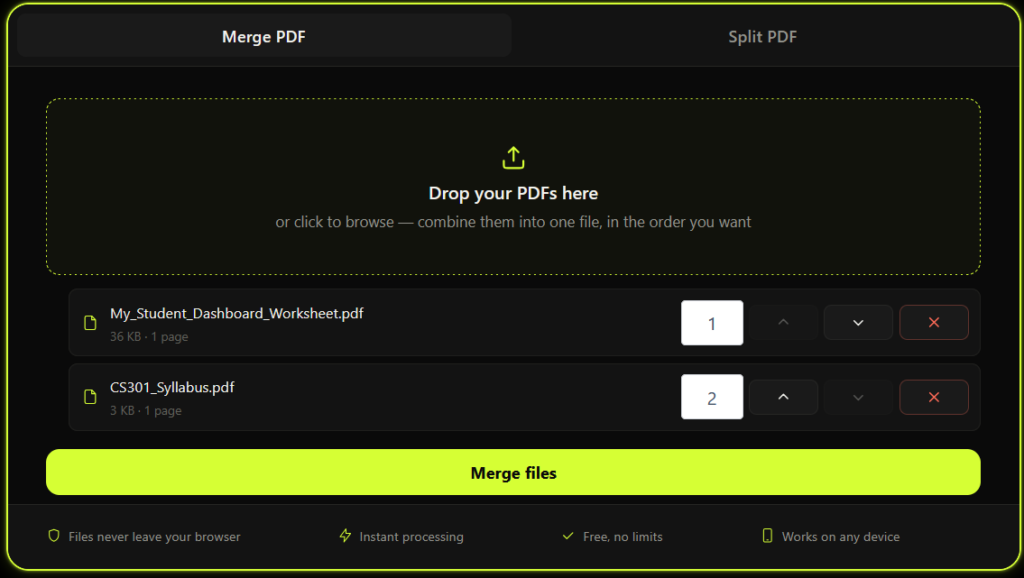
- Open the tool. Go to the FreeConvertzo merge PDF tool.
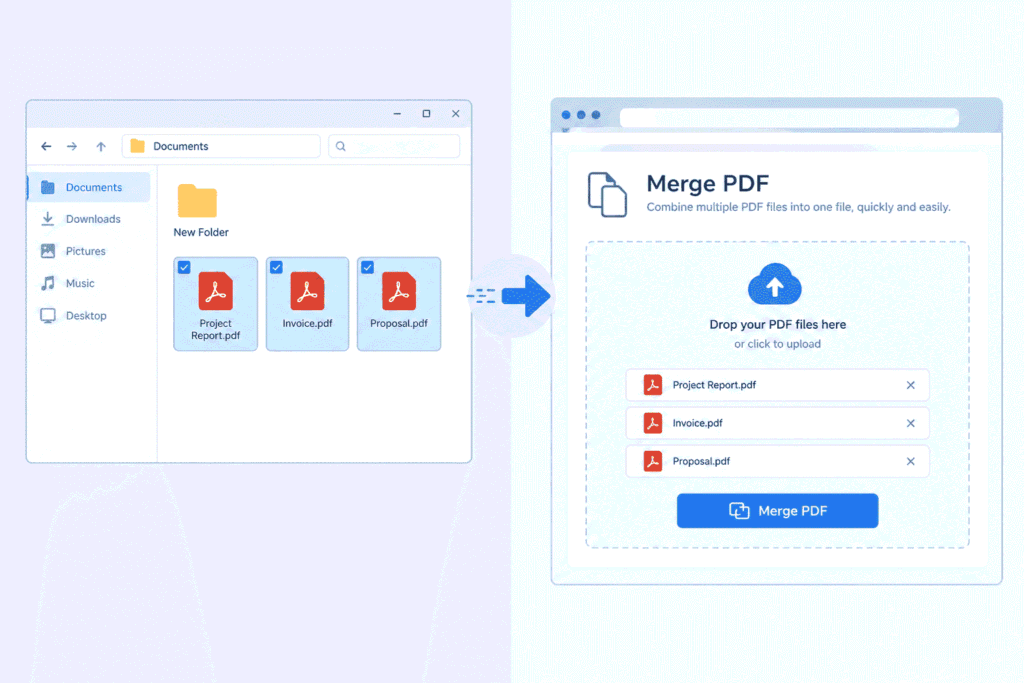
- Add your files. Click the upload button, or drag your PDFs into the box. Select two or more files.
- Check the order. The file at the top becomes the first part of your new PDF. Drag files up or down if you need to.
- Start the merge. Click the merge button and wait a few seconds. Bigger files take longer.
- Download the result. Save the new PDF to your device and open it to make sure every page is there.
What settings and options matter when merging?
The order of your files matters most, because pages appear in the same order as the list. Other options depend on the tool, so check what’s available on the tool page.
| Option | What it does | Tip |
|---|---|---|
| File order | Sets which document comes first | Name files “1”, “2”, “3” before uploading to keep things simple |
| Page selection | Some tools let you pick certain pages | Handy if you only need part of a long file |
| Adding more files | Lets you add another PDF after upload | Better than starting over |
| Output name | The name of your merged file | Rename it so you can find it later |
How do I merge PDFs on Windows?
Windows doesn’t have a built-in PDF merge feature, so the easiest way is an online tool in Edge, Chrome or Firefox. You can also use paid desktop software like Adobe Acrobat if you merge files all day.
For most people, the browser method is faster. Follow the steps above with FreeConvertzo, and save the result to your Downloads folder.
If you’d rather use software, Adobe offers its own online merge PDF tool, and its desktop app has similar features. Some features may need a paid plan, so check their pricing first.
How do I merge PDFs on a Mac?
On a Mac, you can merge PDFs for free using the built-in Preview app. Open one PDF, drag other files into its thumbnail sidebar, then export.
Here’s how:
- Open your first PDF in Preview.
- Click View and choose Thumbnails.
- Drag the second PDF file from Finder into the thumbnail sidebar. Drop it where you want those pages to go.
- Repeat for any other files.
- Go to File and choose Export as PDF. Save it under a new name.
You can also use a browser tool on your Mac if you don’t want to drag pages around. That’s helpful if you’d rather not touch your original files at all.
Merging PDF files can be accomplished seamlessly across various platforms, including Windows, Mac, and mobile devices. Users are encouraged to utilize built-in functionalities or specialized software It is advisable to explore reputable applications that offer user-friendly interfaces and efficient merging capabilities.
How do I merge PDF files on iPhone and Android?
The simplest way to merge PDF files on a phone is to open an online merge tool in your mobile browser. Upload the PDFs from your phone’s storage, reorder them and download the combined file.
On iPhone:
- Open Safari or Chrome and go to FreeConvertzo.
- Tap the upload area and choose Choose Files to pick PDFs from the Files app.
- Reorder them, merge, and download.
- Find the new file in the Files app under Downloads.
On Android:
- Open Chrome and go to the merge tool.
- Tap upload and select your PDFs from your phone storage or Google Drive.
- Reorder, merge, and download.
- Open the Files app to find the merged PDF.
What if it still doesn't work?
If your merge fails, the usual causes are a locked file, a damaged file or a very large upload. Most of these are quick to fix.
- The file is password-protected. Remove the password first, if you have the right to do so. Most tools can’t merge locked PDFs.
- The upload stops or fails. Check your connection and try again. Large files can also hit a tool’s size limit, so look at the limits on the tool page.
- The file is damaged. Try opening it in another PDF reader. If it won’t open there, it may need to be re-saved or re-exported from the original source.
- The pages are in the wrong order. Merge again and reorder the list before you click merge.
- The merged file is too big. Compress it, or merge fewer files at a time. See [INTERNAL LINK: reduce PDF file size -> /blog/reduce-pdf-size].
- The file is a scan. It merges fine, but the text may not be searchable unless it went through OCR first.
We can’t promise every file will work. Some PDFs have unusual formatting that trips up merge tools.
Is it safe to merge PDFs online?
It’s reasonably safe if you use a tool you trust and avoid uploading highly sensitive files. This is general advice for any online tool, so read each site’s privacy policy.
- Don’t upload passports, bank statements or medical records to any site unless you understand how it handles files.
- Check the tool’s privacy policy to see how long files are kept.
- Use a secure connection. The address should start with https://.
- Keep a copy of your original files, so you can redo the merge if something goes wrong.
- For very private documents, an offline app like Preview on Mac may be the better choice.
FAQ
Can I merge PDF files for free?
Yes. Many online tools, including FreeConvertzo, let you combine PDFs at no cost. Mac users can also use the free Preview app. Limits on file size or the number of files vary, so check the tool page.
Will merging PDFs reduce quality?
Normally no. Merging joins your pages together without redrawing them, so text and images should look the same. The file size will just be larger, since it holds all the pages.
How many PDF files can I merge at once?
It depends on the tool. Some allow a handful of files, others allow more. If you hit a limit, merge in two rounds. Combine a few files first, then merge the results.
Can I change the page order after merging?
That depends on the tool. The easiest fix is to merge again with the files in the right order. Some PDF editors also let you drag and rearrange pages after merging.
Can I merge a PDF with images or Word files?
Not directly in most tools. Convert your images or Word files to PDF first, then merge everything. That keeps things simple and predictable.