
How to Extract Specific Pages From a PDF
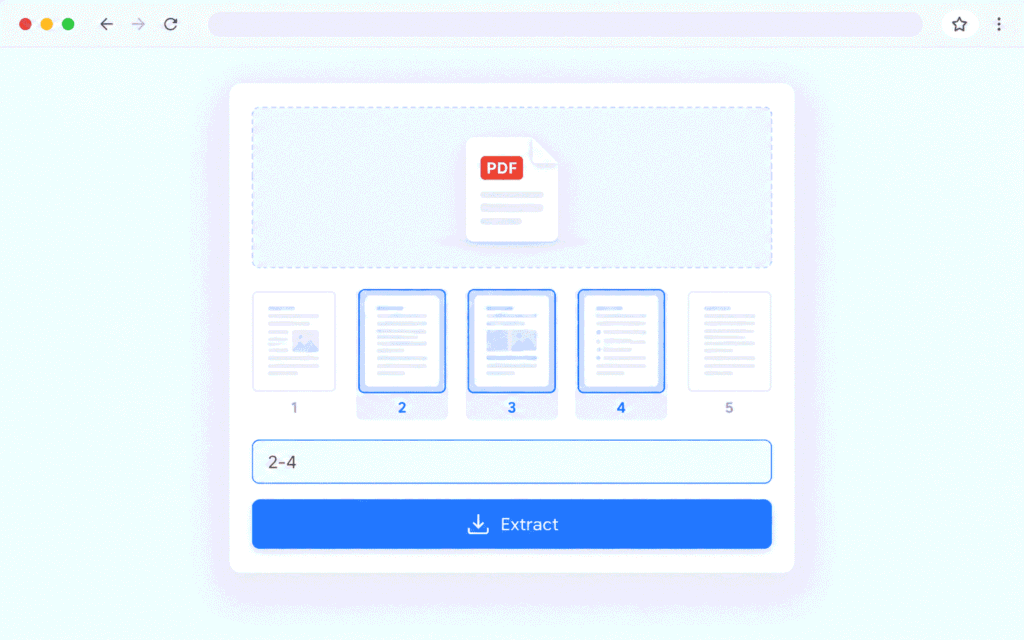
Need only pages 3 to 5 of a 40-page PDF? You don’t have to send the whole file. To extract specific pages from a PDF, upload it to a page extractor, choose the pages, and download a new PDF with just those pages. This guide uses FreeConvertzo and also covers Windows, Mac, Android and iPhone.
[October 6, 2026]
By [paresh jena ]
How do I extract specific pages from a PDF online?
You upload the file, enter the page numbers you want, and download the result. It takes about a minute for a normal document.
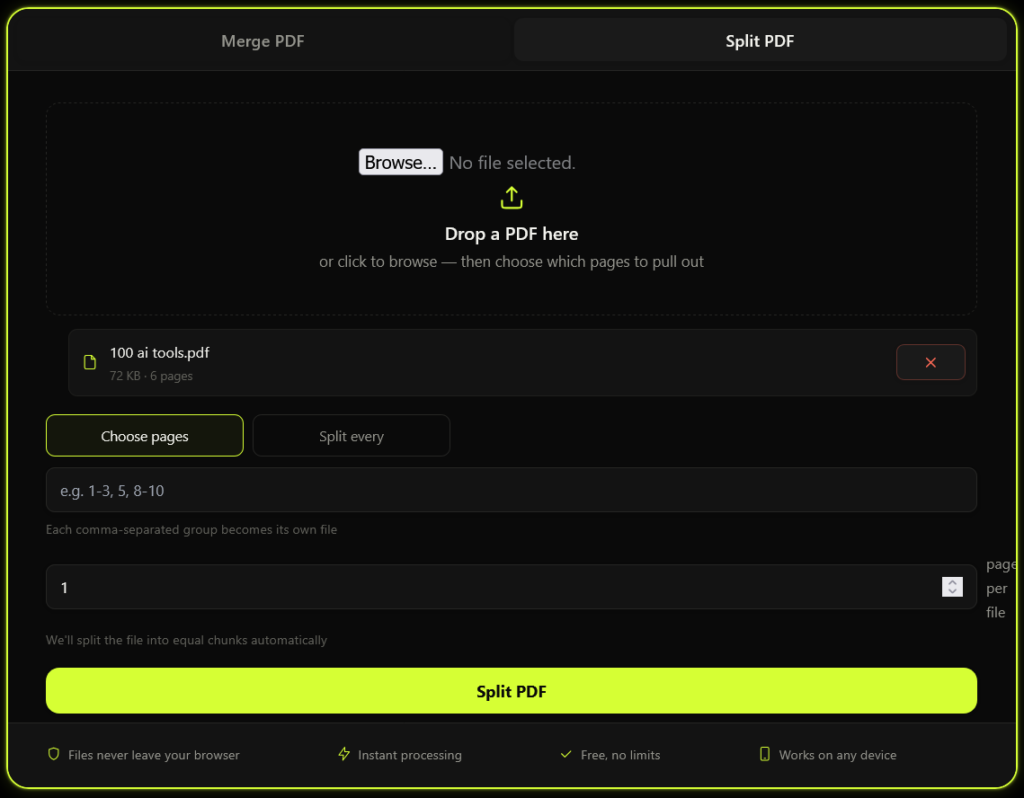
Here’s the full process with the FreeConvertzo PDF tool :
- Open the tool. Go to the page extractor on FreeConvertzo.
- Upload your PDF. Drag the file in or pick it from your device.
- Check the page count. Make sure the page numbers you see match what you expect. Cover pages and blank pages sometimes throw the count off.
- Enter the pages. Type a single page, a range, or a mix. Examples are in the next section.
- Run the extraction. Click the button and wait a few seconds.
- Download and open the new file. Scroll through it. Make sure every page you wanted is there, in the right order.
What page range formats can I use?
Most page extractors accept single pages, ranges with a dash, and lists separated by commas. If your tool shows a hint next to the box, follow that.
| You type | You get |
|---|---|
5 | Only page 5 |
2-6 | Pages 2, 3, 4, 5 and 6 |
1,4,9 | Pages 1, 4 and 9 |
1,4-6,10 | Pages 1, 4, 5, 6 and 10 |
A couple of small tips:
- Use the page numbers your PDF viewer shows, not the numbers printed on the pages. A book chapter might say “page 1” while the PDF counts it as page 12.
- Don’t add spaces or extra symbols unless the tool asks for them.
Extract, split or delete: which one do you need?
Extracting pulls chosen pages into a new PDF. Splitting cuts a PDF into several files. Deleting removes pages from the same document. They sound alike, but the result is different.
| Task | What happens | Use it when |
|---|---|---|
| Extract pages | Selected pages go into one new PDF | You need a few pages from a long file |
| Split PDF | The file is cut into multiple PDFs | You want chapters or sections as separate files |
| Delete pages | Unwanted pages are removed | You want to keep most of the document |
Say you have a 30-page contract and only need the signature page. Extract page 30. If you want the whole contract without the cover sheet, delete page 1 instead.
What if it still doesn't work?
Most failures come down to a locked file, a wrong page number, or a scanned document. Here’s how to fix each one.
The file won’t upload. Check the file size. Very large PDFs can fail on slow connections. Try again on a stronger connection, or compress the file first.
The PDF is password protected. Many tools can’t read a locked file. If it’s your document and you know the password, remove the protection first, then extract.
The wrong pages came out. This is almost always a numbering mix-up. Open the original, look at the page counter in your viewer, and use that number.
The pages look blurry. If the original was a low-quality scan, the extracted pages will be just as blurry. Extracting doesn’t improve quality.
The text can’t be selected. Scanned PDFs are pictures of pages, not real text. Extracting still works, but you’d need OCR (text recognition) to make the words selectable.
Links or form fields stopped working. Interactive parts can behave differently after extraction. Open the new file and test it before you send it.
Can I extract PDF pages on my phone or computer?
Yes. An online extractor works in any modern browser, and most devices also have a built-in workaround. The built-in options are slower for big jobs, but they’re handy offline.
Windows or any computer with Chrome or Edge
Open the PDF in your browser and press Ctrl+P. Choose “Save as PDF” as the printer. Under Pages, pick Custom and enter your range. Click Save.
Mac
Open the PDF in Preview and turn on thumbnails. Select the pages you want, then go to File, then Print. Open the PDF menu in the bottom-left corner and choose Save as PDF.
Android
Open the file in a PDF viewer like Google Drive’s. Look for Print in the menu, choose Save as PDF, and select the pages. The menu names vary by phone brand.
iPhone and iPad
Tap Share, then Print, and choose the pages in the options. Your iPhone may let you save the result to Files. Steps shift a little between iOS versions, so if it feels fiddly, use the browser tool instead.
Is it safe to upload a PDF?
It depends on what’s inside the file. For ordinary documents like notes, recipes or school handouts, an online tool is fine. For private files, be more careful.
Some simple habits:
- Don’t upload IDs, bank statements, passports or medical records to any site you don’t fully trust.
- Read the privacy policy of the tool you’re using. Look for how long files are kept.
- Extract only what you need. Sharing three pages is safer than sharing all forty.
- Open the new file and check it before you send it. Make sure no private page slipped in.
- Delete the downloaded copies once you’re done.
FAQ
How do I extract one page from a PDF?
Enter just that page number, like 7, in the page box and run the tool. You’ll get a new one-page PDF. Your original file stays as it was.
Can I extract pages that aren't next to each other?
Yes. Use commas, like 2,5,8. You can combine them with ranges too, like 1,4-6,10. The new file keeps the pages in order.
Can I extract pages from a password-protected PDF?
Usually not until the password is removed. If you own the file and know the password, unlock it first, then extract the pages you need.
What's the difference between extracting and splitting a PDF?
Extracting pulls only the pages you choose into one new file. Splitting cuts the whole PDF into several smaller files. Pick extract when you only want a few pages.
Will extracting pages reduce the quality?
No. The pages are copied as they are, so text and images should look the same. A blurry scan will stay blurry, though.