
How to Move Pages Around in a PDF Without Acrobat
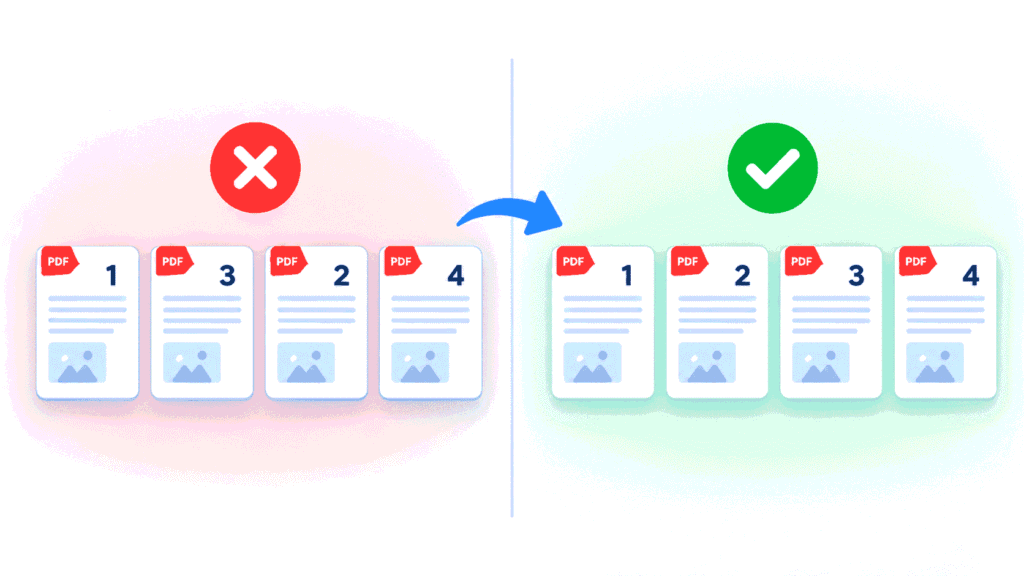
You can move pages around in a PDF without Acrobat by using a free online page organizer. Upload your file, drag the page thumbnails into the order you want, and download the new PDF. It takes about a minute. This guide shows the steps with FreeConvertzo, plus options for Windows, Mac, Android and iPhone.
[08 October 2026]
By [Paresh jena ]
What does it mean to reorder PDF pages?
Reordering PDF pages means changing the order in which pages appear, without changing what’s on them. A PDF (Portable Document Format) is a file type made to look the same on every device, which is also why it’s hard to edit. You can read more about the format on Wikipedia.
People usually need this for simple reasons:
- You scanned pages in the wrong order.
- You merged two files and the pages came out mixed up.
- You want the cover page or a signed page at the front.
- A teacher, client or office asked for a certain order.
Acrobat can do it, but the full version is paid. You don’t need it for something this simple.
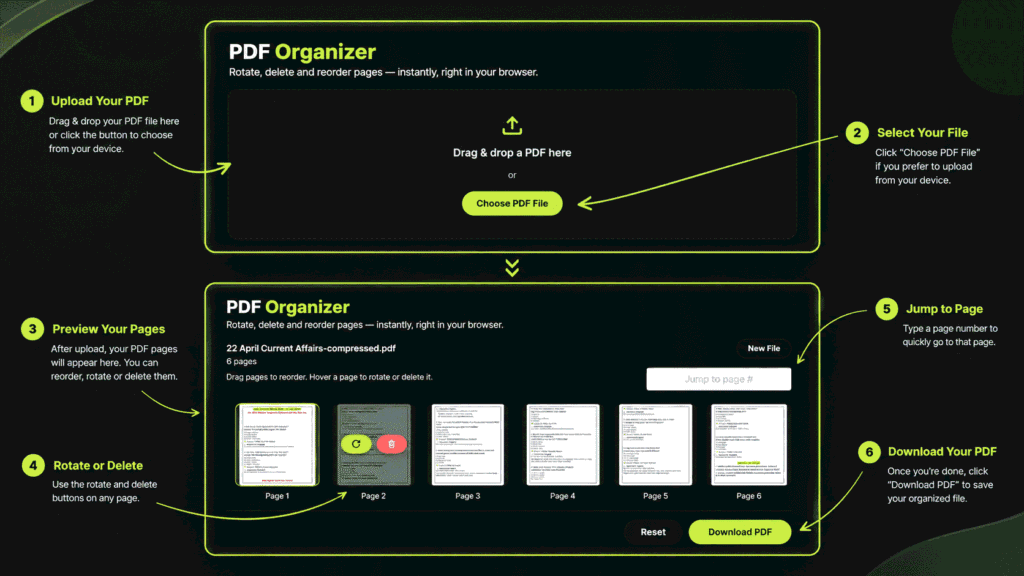
How do I move pages around in a PDF without Acrobat?
Here’s the step-by-step:
- Go to the tool. Open FreeConvertzo and find the PDF page organizer or reorder tool.
- Upload your PDF. Click the upload button or drag your file into the box.
- Wait for thumbnails. You’ll see small previews of every page, usually in a grid.
- Drag pages into place. Click a page, hold, and drop it where you want it. Do this for each page that’s out of order.
- Check the order. Look through the thumbnails once more. Fixing it now saves a second round.
- Save and download. Click the button to apply changes, then download your new PDF.
How do I move just one page to the front or back?Drag that one page’s thumbnail to the first or last position and save. You don’t need to touch the other pages. Their order stays the same.
Which method is best for you?
The best method depends on your device and how often you do this. Here’s a quick comparison.
| Method | Cost | Works on | Best for |
|---|---|---|---|
| Online page organizer | Free options exist | Any device with a browser | Quick one-off jobs |
| Mac Preview | Free (built in) | Mac only | Mac users with no sensitive worries |
| Desktop PDF editor | Free or paid | Windows, Mac | Frequent, heavy PDF work |
| Word (open PDF, then re-save) | Needs Word | Windows, Mac | Not recommended, layout can break |
What if it still doesn't work?
If the page organizer won’t load or save your file, the cause is usually one of a few simple things. Try these fixes in order:
- The file won’t upload. Very large files can time out. Try a faster connection, or split the PDF first.
- The PDF is password-protected. Most tools can’t change a locked file. Remove the password first, if you’re allowed to.
- Thumbnails look blank. Refresh the page and upload again. Try a different browser if it keeps happening.
- The saved file looks different. Open it in another PDF viewer. Sometimes the viewer, not the file, is the problem.
- Bookmarks or links stopped working. Reordering can break internal links and the table of contents. Check them after saving.
- The file is a scan. A scanned PDF is just images, so pages move fine, but text can’t be edited.
Exact results can depend on how the PDF was made. If one tool fails, another may handle the same file.
How do I rearrange PDF pages on Windows, Mac, Android and iPhone?
An online tool works on every device. Some devices also have built-in options.
Windows. Windows doesn’t have a built-in PDF page reorder tool. Use a browser-based tool or a free desktop PDF editor.
Mac. Mac has a good built-in option. Open the PDF in Preview, choose View, then Thumbnails. Drag pages in the sidebar into a new order, then save. Apple explains Preview here: Preview User Guide.
Android. There’s no standard built-in reorder tool. Open your browser, go to an online page organizer, and upload the file from your phone.
iPhone and iPad. The Files app has some basic page tools, but reordering is easier in a browser-based tool. Open it in Safari or Chrome and upload from Files.
Is it safe to reorder a PDF online?
It’s a reasonable thing to do for everyday files, but use some common sense. Here are general tips that apply to any online tool:
- Don’t upload files with passwords, ID numbers, bank details or medical records unless you trust the service and understand how it handles files.
- Read the tool’s privacy policy to see how long uploaded files are kept.
- Make sure the site address starts with https.
- Keep your original file. Save the reordered version under a new name.
- For very private documents, use an offline option such as Mac Preview or desktop software.
FAQ
How do I rearrange pages in a PDF for free?
Use a free online page organizer or a built-in tool like Mac Preview. Upload the PDF, drag the page thumbnails into the right order, and save the new file. Free tools can have limits on file size, so check them before you start.
How do I change the page order in a PDF on my phone?
Open your phone’s browser and use an online page organizer. Upload the file from your phone, drag the pages into order, and download the result. This works on both Android and iPhone.
How do I rearrange PDF pages on Windows 10 or 11?
Windows has no built-in PDF page reorder tool. The easiest option is an online page organizer in your browser. A free desktop PDF editor also works if you do this often.
Does reordering pages reduce PDF quality?
Usually not. Moving pages doesn’t redraw them, so text and images should look the same. Open the saved file and flip through it once to be sure.
Can I rearrange pages in a PDF using Word?
You can open a PDF in Word, but Word converts it, and the layout often breaks. Fonts, images and spacing may move. A page organizer is a safer choice because it keeps the pages as they are.