
How to Crop a PDF Page and Remove White Margins
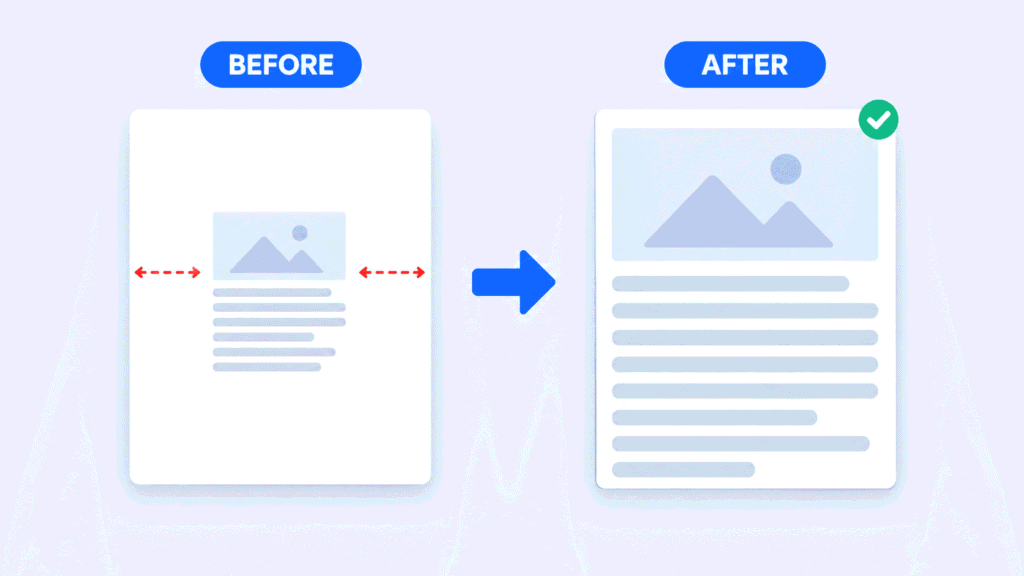
Want to crop a PDF page and remove white margins? You can do it in about a minute with a free online tool like FreeConvertzo’s Crop PDF tool . Upload your file, choose the area you want to keep, and download the trimmed copy. This guide shows the steps, explains what cropping really does, and fixes the common problems.
[09 October 2026]
By [Paresh jena ]
What does it mean to crop a PDF page?
Reordering PDF pages means changing the order in which pages appear, without changing what’s on them. A PDF (Portable Document Format) is a file type made to look the same on every device, which is also why it’s hard to edit. You can read more about the format on Wikipedia.
How do you crop a PDF page and remove white margins online?
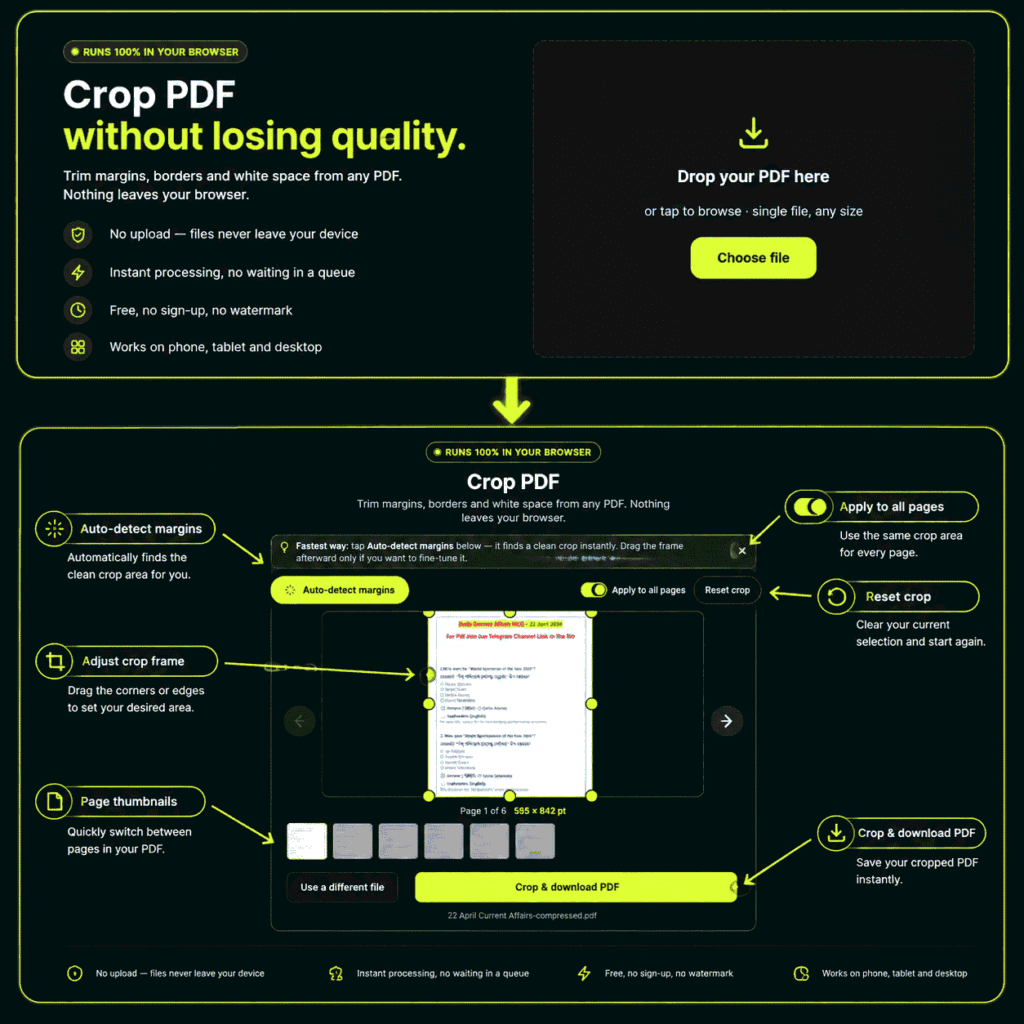
You upload the PDF to a crop tool, mark the area to keep, and download the result. It takes four steps and no software install.
- Open the tool. Go to the PDF page crop tool on FreeConvertzo .
- Upload your PDF. Pick the file from your device. Use a copy if the original is important.
- Set the crop area. Move the crop box so it sits just outside your text or images. Leave a tiny gap so nothing gets clipped.
- Apply and download. Run the crop, then save the new file. Open it and scroll through every page.
How do you remove white space from a PDF without cutting the text?
Keep the crop box a few millimeters outside the text. A thin safe border stops letters from touching the page edge. It also helps when you print, because many printers need a little room around the content.
Which crop settings should you choose?
Choose one crop area for all pages if your layout is consistent, and page-by-page cropping if it isn’t. Not every tool offers every option, so use what you see on the tool page.
- One crop area for all pages: Applies the same box to every page. Best for clean documents, reports and ebooks.
- Page-by-page crop: Lets you set a different box per page. Best for scans with uneven margins.
- Tight crop: Cuts close to the content. Best for reading on a phone or tablet.
- Small safe border: Leaves a thin gap around the content. Best for printing and sharing.
Does cropping a PDF reduce quality?
Usually not. Cropping changes which part of the page is shown. It doesn’t redraw your text. Still, results depend on the file and the tool, so zoom in and check the final PDF.
What if it still doesn't work?
Most crop problems come from a locked file, a scanned page that’s slightly tilted, or a crop box placed too tight. Try the fixes below one by one.
- The upload fails. Check that the file is a real PDF and not a renamed image. Very large files can also fail, so try a smaller copy.
- The PDF is password-protected. Remove the password first if you’re allowed to, then crop.
- Text got cut off. Redo the crop with a bigger box and leave a small border.
- How do I crop a scanned PDF? Scans often have uneven borders because the paper sat at a slight angle. Use page-by-page cropping if available, or pick a box big enough to fit the widest page.
- The file size didn’t change. That’s normal. Cropping doesn’t always shrink a file. If you need a smaller file, compress it separately. [INTERNAL LINK: compress a PDF -> /blog/how-to-compress-pdf-without-losing-quality]
- The page looks uncropped in another app. Some viewers handle hidden areas differently. Open the file in a second viewer to compare.
How do you crop a PDF on Windows, Mac, Android and iPhone?
option, and Adobe Acrobat Pro has a paid one.
- Windows: Use an online crop tool in Chrome, Edge or Firefox. Adobe Acrobat Pro also has a Crop Pages tool.
- Mac: Open the PDF in Preview, use Tools > Rectangular Selection, then Tools > Crop.
- Android: Open the online tool in Chrome and upload from your phone storage.
- iPhone / iPad: Open the online tool in Safari and pick the file from the Files app.
Is it safe to crop a PDF online?
It’s safe when you follow basic habits and don’t upload anything highly sensitive. Cropping alone is not a way to hide private information.
- Cropping can hide, not erase. In many tools, the area outside the crop can still exist in the file. If a page has an ID number or an address you must remove, use a proper redaction tool instead.
- Work on a copy. Keep your original PDF safe in case you need the full page later.
- Avoid public Wi-Fi for private files. Use your own network when you upload bank, medical or legal papers.
- Read the site’s privacy policy. Check how any online tool handles uploaded files before you use it.
- Check the output. Scroll through every page before you share the cropped file.
FAQ
Can I crop a PDF page for free?
Yes. Free online tools let you crop a PDF without installing software. FreeConvertzo’s crop PDF online free tool is one option. Always check the final file before you use it.
Does cropping a PDF lower the quality?
In most cases the text and images stay as sharp as before, because cropping only changes the visible area. Results can vary by file and tool, so zoom in and check.
Does cropping delete the content outside the box?
Not always. Many tools only hide it. If you need to remove sensitive details for good, use a redaction feature and not a crop.
How do I remove white space from a scanned PDF?
Crop the page so the box sits just outside the text. If the scan is tilted, leave a slightly larger border so no words get cut. Check each page afterward.
Will cropping make my PDF file smaller?
Usually not by much. Cropping changes the page view and doesn’t always reduce file size. To shrink the file, use a compress tool as a separate step.