
How to Remove Metadata From a PDF to Protect Your Privacy
Here’s how to remove metadata from a PDF to protect your privacy: check the file’s properties, run it through a metadata remover, then save a clean copy. Your PDF can carry your name, your software and exact dates, even when the pages look harmless. This guide shows you how to fix that with FreeConvertzo and a few other methods.
[12 October 2026]
By [Paresh jena ]
What Is PDF Metadata and Why Does It Matter?
PDF metadata is information stored inside the file that describes it, like who made it, when, and with which program. You don’t see it on the page, but anyone who opens the file’s properties can read it. Wikipedia has a good overview of metadata if you want the basics.
Here’s the problem. Say you send a resume, a contract or a legal notice. The PDF might still carry your full name, your computer’s username, and the name of the software you used. If you started from a Word file, the original document title can come along too.
That doesn’t always cause harm. But it can leak details you never meant to share. A freelancer might show a client’s name in an old file title. A journalist might expose a source’s computer name. Even a plain job application can reveal more than you planned.
Many PDFs also store metadata in a format called XMP. Wikipedia explains XMP if you’re curious. Good cleaning tools handle both the standard fields and the XMP data.
How Do You Remove Metadata From a PDF Step by Step?
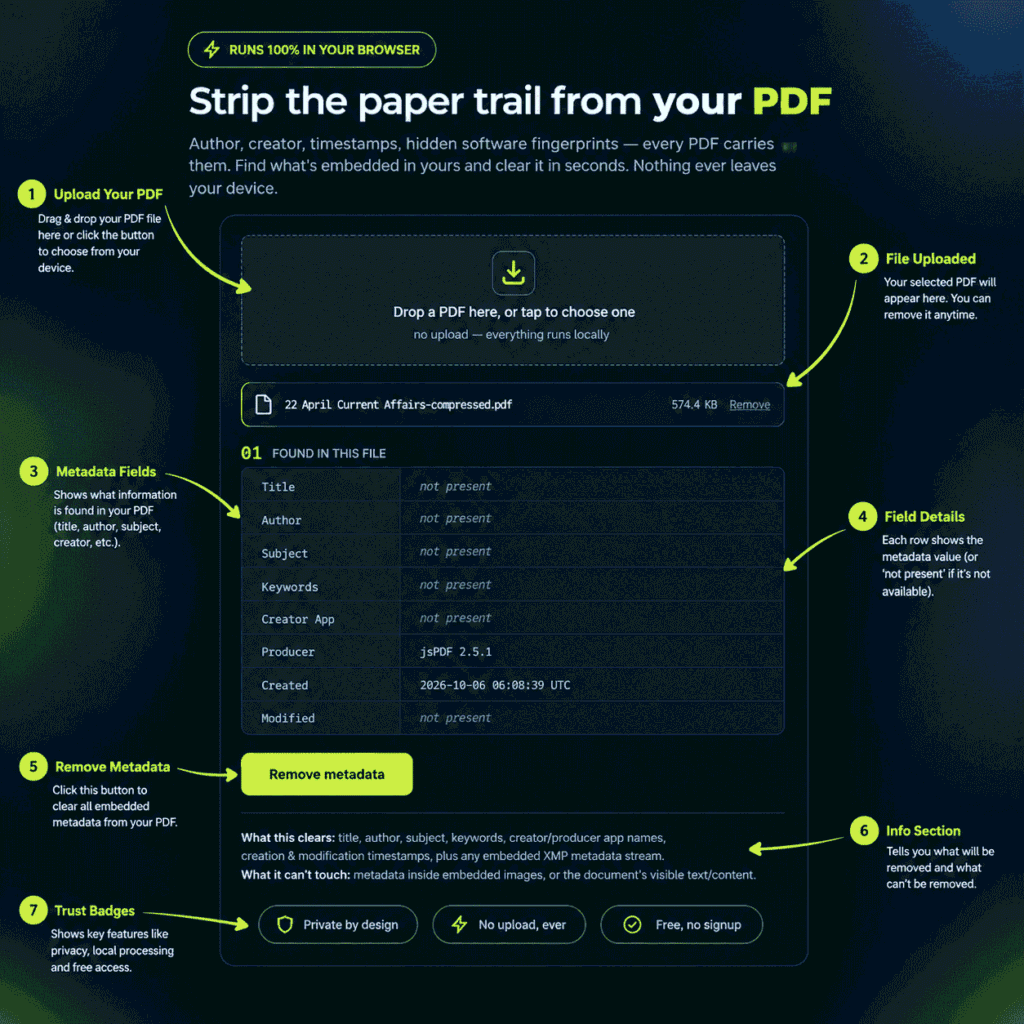
You remove it by checking what’s inside, running the file through a metadata remover, and verifying the result. The whole thing takes a couple of minutes. These steps follow the same flow on any device.
Step 1: Check what your PDF is hiding
Open the PDF in any reader. In Adobe Acrobat Reader, go to File > Properties. In most browsers and other readers, look for “Document Properties” in the menu.
Write down anything personal. Look at the Author, Title, Subject, Keywords, Creator and Producer fields.
Step 2: Upload the PDF to a metadata remover
Go to FreeConvertzo and open the PDF metadata tool. Add your file, then start the cleaning process. [Adjust these steps to match the exact buttons on your tool page.
Step 3: Download the cleaned copy
When the tool finishes, download the new file. Save it with a clear name, such as resume-clean.pdf. Keep your original in a safe place in case you need to edit it later.
Step 4: Verify the metadata is gone
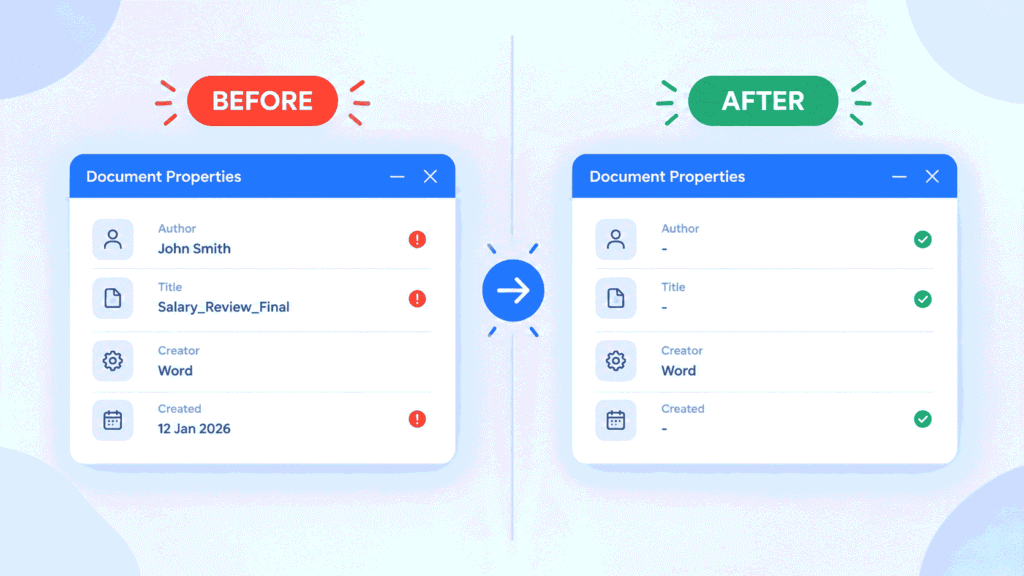
Open the new file and check its properties again. The Author, Title and Keywords fields should be empty or blank.
Some fields, like the page count or file size, will always exist. That’s normal. You’re after the personal ones.
What Does Each Metadata Field Mean?
Each field stores one kind of detail, and the personal ones are Author, Title, Creator and Keywords. Here’s what you’ll usually see:
| Field | What it stores | Privacy risk |
|---|---|---|
| Author | The name set in your software or computer account | High, it’s often your real name |
| Title | The document title, sometimes the old file name | Medium |
| Subject / Keywords | Extra labels added by you or your software | Medium |
| Creator | The program that made the original file, like Word | Low to medium |
| Producer | The tool that created the final PDF | Low |
| Creation / Modification date | When the file was made and last changed | Medium |
| XMP data | Extended details in a separate block | Varies |
Not every PDF has every field. Some files are almost empty, and others are packed.
What If It Still Doesn’t Work?
If you still see personal data after cleaning, the info is likely in a place the tool didn’t touch, or you’re looking at the old file. Try these fixes in order.
- Check you opened the new file. It’s easy to open the original by mistake.
- Re-run the cleaning. Some files need a second pass.
- Look for hidden content. Metadata isn’t the only risk. Comments, form fields and attachments can hold personal info too.
- Print to PDF. Open the file, choose Print, and select “Save as PDF” or “Microsoft Print to PDF”. This builds a new file from the visible pages. It usually leaves the old metadata behind, but it can also drop bookmarks and links.
- Use a sanitize feature. Adobe Acrobat Pro has a tool for removing hidden information.
How Do You Remove PDF Metadata on Windows, Mac, Android and iPhone?
An online tool works on every device, since you only need a browser. That’s the easiest way to stay consistent across phones and computers. A few device-specific options exist too.
Windows: Use FreeConvertzo in your browser. You can also right-click the file, open Properties > Details, and look for “Remove Properties and Personal Information”. This option doesn’t always work for PDFs, so always check the result.
Mac: Preview shows some PDF details under Tools > Show Inspector, but it’s limited for editing. Use an online remover, then verify the result.
Android: Open FreeConvertzo in Chrome, upload the PDF from your Files app, then download the cleaned copy.
iPhone and iPad: Use Safari. Upload from the Files app, run the tool, and save the new PDF back to Files.
Chrome or Edge: Open the PDF, print it, and choose “Save as PDF” as a quick workaround.
Safety and Privacy Tips
The safest habit is to clean a PDF before you send it to anyone you don’t fully trust. Here are a few general tips:
- Keep an original. Always save your editable source file somewhere safe.
- Clean before sharing, not after. Once a file is public, copies already exist.
- Check the file name too. “John_Smith_Salary_Review.pdf” is metadata you can see.
- Watch the content. Metadata removal doesn’t blur names, faces or numbers on the pages themselves.
- Read the tool’s privacy policy. Before uploading sensitive documents to any online tool, check how it handles files. For very sensitive work, use offline software.
- Don’t treat this as full redaction. Hiding text in a PDF isn’t the same as removing it. Use proper redaction software for that.
FAQ
Can PDF metadata really identify me?
Yes, it can. The Author field often holds your real name or your computer username. Dates and software details can add more clues about when and how you made the file.
Does removing metadata change how my PDF looks?
No. Metadata sits behind the pages, so text, images and layout stay the same. Always open the cleaned file to double-check.
Is it legal to remove metadata from a PDF?
For your own files, yes. If a document is part of a legal case or a business record, follow your organization’s rules, since editing a file may affect its evidence value. Ask a professional if you’re unsure.
What’s the difference between metadata and redaction?
Metadata is hidden information about the file. Redaction removes visible content from the page, like names or numbers. You may need both for sensitive documents.
Will cleaning remove comments or attachments?
Not always. Metadata removal focuses on the document’s information fields. Comments, attachments and form data can stay unless the tool says it removes them, so check your result.