
Add Bookmarks to PDF Online Free
Compare Two PDF Files Online
Add bookmarks to PDF online in seconds with auto-detected headings, or compare two PDF files online with a word-by-word difference report. Free, private, no sign-up — everything runs instantly in your browser.
Processing…
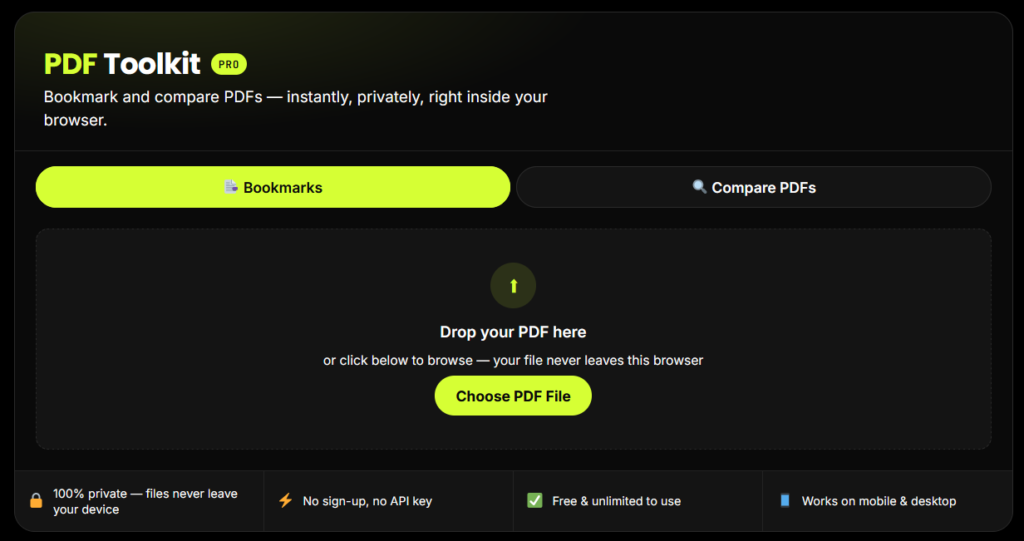
Bookmark and compare PDFs — instantly, privately, right inside your browser.
Drop your PDF here
or click below to browse — your file never leaves this browser
No bookmarks yet — add one manually or try Auto-Detect Headings above.
Original PDF
Click or drop file
Revised PDF
Click or drop file
How to Add Bookmarks to PDF Online
Follow these steps to add bookmarks to a PDF online in under a minute:
Upload your PDF
Drag and drop your file
or click to browse.
Add bookmarks
Click on the bookmark
option and select the
pages or sections.
Set bookmark details
Give your bookmark
a name (optional).
Adjust settings
Customize the style,
font size and color
(if needed).
Download your PDF
Click "Download" and
get your bookmarked
PDF instantly.
What This Tool Does
This tool lets you add bookmarks to a PDF or compare two PDF files online. You can organize your documents, quickly find important sections, and easily check the differences between two versions — all without leaving your browser.
How to Compare Two PDF Files Online
Follow these steps to compare two PDF files online and catch every change:
Upload first file
Drag and drop or select
your first PDF.
Upload second file
Add your second PDF
for comparison.
Set comparison options
Choose the pages,
mode and settings.
Start comparison
Click “Compare” and
let the tool do the work.
View & download
Get the comparison
result instantly.
How to Compare Two PDF Files Online
Follow these steps to compare two PDF files online and catch every change:
Key Features
Auto-Detect Headings
turns document headings into bookmarks automatically
Nested Bookmark Trees
organize bookmarks in multi-level hierarchies
Word-Level PDF Comparison
see exactly what changed, not just "something changed"
Change Summary Report
total pages changed, words added, words removed
Instant Download
get your bookmarked or compared PDF output immediately
No Upload, No API Key
100% browser-based processing
Fully Mobile Responsive
use it on your phone, tablet, or desktop
Converting HTML to PDF with this free HTML to PDF converter takes three steps:
How to Compare Two PDF Files Online
Follow these steps to compare two PDF files online and catch every change:
Upload first file
Drag and drop or select
your first PDF.
Upload second file
Add your second PDF
for comparison.
Set comparison options
Choose the pages,
mode and settings.
Start comparison
Click “Compare” and
let the tool do the work.
View & download
Get the comparison
result instantly.
Why This Tool Is Better Than Other PDF Tools
Unlike many popular PDF platforms such as iLovePDF, and Adobe Acrobat Online, this tool freeconvertzo is designed with a simpler, privacy-first experience — so you can complete your PDF task without unnecessary signup steps, complicated interfaces, or waiting for cloud processing. Instead of sending your files to a remote server, browser-based processing can keep your documents on your own device, making the workflow faster, more private, and convenient. Whether you need to add a password, edit, convert, compress, or manage a PDF, this tool focuses on free access, no-watermark output, simple controls, and instant results without making users navigate through unnecessary features or account requirements.
FAQ
Frequently Asked Questions
How do I add bookmarks to a PDF for free?
Upload your PDF into a free online tool, click “Auto-Detect Headings” to generate bookmarks automatically, or add them manually page by page, then download the updated file. No software installation or payment is required.
How do I automatically generate bookmarks from PDF headings?
No. This tool only removes a password you already have — it can’t recover, guess, or bypass a forgotten password.
How do I remove bookmarks from a PDF?
Open the PDF in a bookmark editor, select “Remove All” (or delete each bookmark individually), then save or download the file. This strips the existing outline while keeping all page content unchanged.
How do I compare two PDF files to find differences?
Upload both PDF versions into a comparison tool, run the compare function, and review the highlighted differences — usually shown as additions in green and deletions in red, page by page.
What's the best way to compare two versions of a contract?
Use a PDF comparison tool that highlights word-level changes rather than just flagging “a difference exists” — this lets you confirm exactly which clauses, numbers, or terms were added, removed, or reworded.
Does comparing PDFs detect image or layout changes, not just text?
Basic tools compare text only, which is enough for most contracts and reports. More advanced tools also detect layout or image-level changes, useful for brochures, forms, or visually formatted documents.