
How to Create a Clickable Table of Contents in a PDF
The easiest way to make a clickable table of contents in a PDF is to build it in Word or Google Docs first, then export to PDF with links turned on. The links survive the export. If your PDF is already finished, you can add links by hand in a PDF editor like Adobe Acrobat. This guide covers both routes, plus fixes for links that won’t work.
[10 October 2026]
By [Paresh jena ]
What’s in This Guide
- What Is a Clickable Table of Contents in a PDF?
- How Do You Make a Clickable Table of Contents in Word and Save It as PDF?
- How Do You Add a Table of Contents in Google Docs and Download It as PDF?
- How Do You Add a Clickable Table of Contents to a PDF That’s Already Finished?
- Which Method Should You Pick?
- What If Your Clickable Table of Contents Still Doesn’t Work?
- Does a Clickable Table of Contents Work on Windows, Mac, Android and iPhone?
- Safety and Privacy Tips
- FAQ
What Is a Clickable Table of Contents in a PDF?
A clickable table of contents is a list of chapters or sections where each title is a link. When you click a title, the PDF jumps to that page.
It’s different from a plain typed list. A typed list only shows page numbers, so readers have to scroll. A clickable one saves time, especially in long files like manuals, ebooks, reports and study notes.
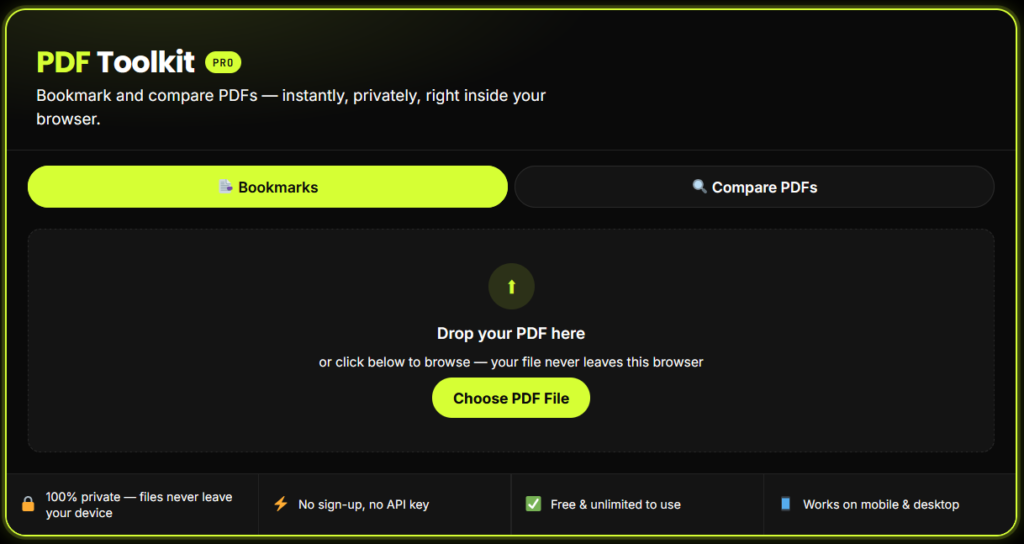
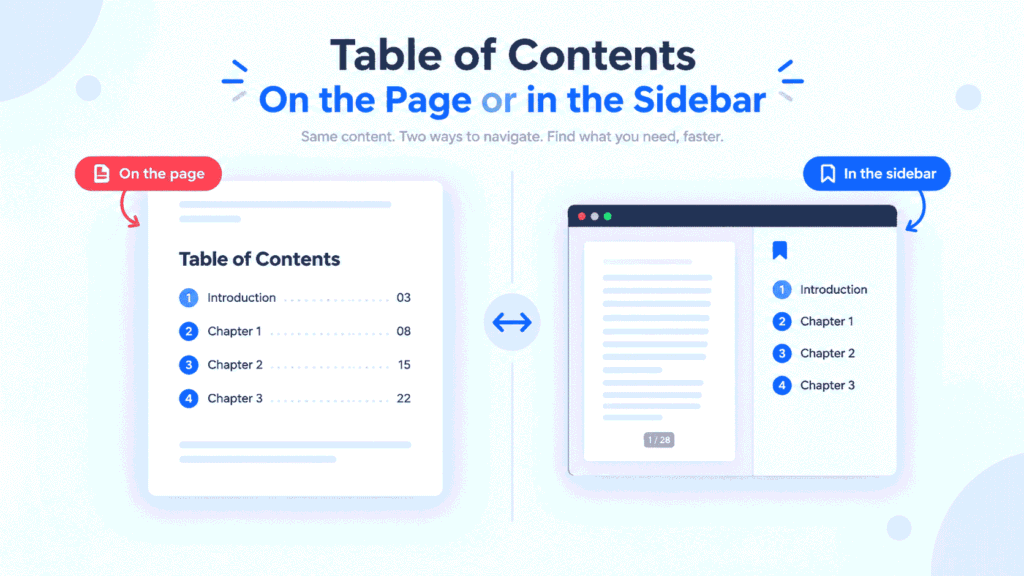
You’ll also hear about PDF bookmarks. These are the clickable titles in the side panel of your PDF viewer. They’re related, but they aren’t the same thing. The table of contents sits on the page. Bookmarks sit in the sidebar. Good PDFs usually have both.
How Do You Make a Clickable Table of Contents in Word and Save It as PDF?
Use Word’s built-in Heading styles, insert an automatic table of contents, then export to PDF. Word turns each entry into a link for you.
Here’s how, step by step:
- Apply heading styles. Select each chapter title. On the Home tab, choose Heading 1. Use Heading 2 for sub-sections.
- Place your cursor where the table of contents should go, usually after the title page.
- Go to References > Table of Contents and pick an automatic style.
- Word builds the list. Hold Ctrl and click (Cmd and click on Mac) to test a link inside Word.
- Go to File > Save As (or Export) and choose PDF.
- Click Options and tick Create bookmarks using: Headings. Also keep Document structure tags for accessibility ticked.
- Save the file and open it in a PDF viewer to test.
How Do You Add a Table of Contents in Google Docs and Download It as PDF?
Insert a table of contents with blue links in Google Docs, then download the file as a PDF. The links stay clickable in the PDF.
Follow these steps:
- Format your titles with Heading 1, Heading 2 and so on, using the styles menu in the toolbar.
- Click where you want the table of contents.
- Go to Insert > Table of contents.
- Choose With blue links. This version has clickable titles. The plain option shows page numbers only and does not use links.
- Go to File > Download > PDF document (.pdf).
- Open the PDF and click a title to check it.
This is the quickest free method if you don’t own Word. It works well for school work, resumes and short reports. Google Docs also adds PDF bookmarks from your headings in the downloaded file, though you should always check in your own viewer.
How Do You Add a Clickable Table of Contents to a PDF That’s Already Finished?
Open the PDF in an editor, then draw a link box around each title and point it to the right page. This takes more time, but it works when you don’t have the original Word or Docs file.
Here’s the usual process in Adobe Acrobat:
- Open the PDF and go to the table of contents page.
- Choose Edit PDF, then Link > Add or Edit Web or Document Link.
- Drag a box around the first chapter title.
- In the dialog, choose Go to a page view and click Next.
- Scroll to the chapter’s page, then click Set Link.
- Repeat for each title.
- Save the file and test every link.
If your file isn’t a PDF yet, convert it first. You can find simple file tools on FreeConvertzo, then add your links afterward.
Which Method Should You Pick?
Pick Word if you write long documents, Google Docs if you want something free and fast, and Acrobat if the PDF is already done.
| Method | Best for | Cost | Effort | Links update automatically? |
|---|---|---|---|---|
| Word to PDF | Reports, manuals, ebooks | Needs Word | Low | Yes, after you update the field |
| Google Docs to PDF | Student work, short reports | Free | Low | Yes, after you refresh the table |
| Acrobat link tool | Finished PDFs, no source file | Paid for full editing | High | No, you add each link by hand |
Always start from the source file when you can. It’s faster, and you can fix typos without redoing every link.
What If Your Clickable Table of Contents Still Doesn’t Work?
Most broken links come from missing heading styles or a bad export setting. Check these first.
- The links aren’t blue or don’t react. You probably typed the list by hand. Delete it and insert an automatic table of contents.
- Links worked in Word but not in the PDF. Re-export and make sure Create bookmarks using Headings is on. Avoid “Print to PDF”. That method often drops links.
- Clicking jumps to the wrong page. You changed the document after building the table. Update the field and export again.
- Some titles are missing. Those lines don’t use a Heading style. Apply one and update.
- The sidebar has no bookmarks. Open the bookmarks panel in your viewer. Some viewers hide it by default.
- Links die after you compress or merge the file. Some tools flatten the PDF. Add links after the final merge or compression.
Does a Clickable Table of Contents Work on Windows, Mac, Android and iPhone?
Yes, all major devices support PDF links, but how they open can differ a little.
- Windows: Edge, Chrome and Acrobat Reader all follow internal links. Use Word’s Save As PDF option for the best results.
- Mac: Preview and Safari support clickable links. Pages can also export PDFs with working table of contents links when you insert its table of contents.
- Android: Google Drive’s viewer and Chrome handle internal links. Some basic viewers do not, so test yours.
- iPhone and iPad: The Files app and Books app support internal links. Tap the title once to jump.
If a reader says the links don’t work, ask which app they use. Switching to Acrobat Reader or a browser usually fixes it.
Safety and Privacy Tips
Treat your PDF like any other file you share. Here’s some general advice:
- Check for private info before you share. Reports often hide names, emails or notes in the text or comments.
- Don’t upload sensitive files (IDs, contracts, bank papers) to any website unless you trust it and have read its privacy policy.
- Keep a backup of your original Word or Docs file before you export or edit.
- Use updated software. Old PDF viewers can have security gaps.
For background on the format itself, see the PDF page on Wikipedia.
FAQ
Can I make a clickable table of contents in a PDF for free?
Yes. Build it in Google Docs with the “With blue links” option, then download as PDF. LibreOffice Writer also does this for free. Both keep the links working after export.
What’s the difference between PDF bookmarks and a table of contents?
A table of contents is a list on a page of the document. Bookmarks appear in the sidebar of your PDF viewer. Both can be clickable, and both help readers move around fast.
Can I add a clickable table of contents to an existing PDF without the original file?
Yes. Use a PDF editor with a link tool, such as Adobe Acrobat. Draw a box around each title and set it to jump to the correct page. It takes time on long files.
Will the links still work if I merge or compress the PDF?
Sometimes they break. Some merge and compression tools flatten pages or reset bookmarks. Do your final merge and compression first, then check the links. Add them again if needed.
Does a clickable table of contents help with SEO?
If you publish the PDF online, search engines can read its text and headings. Clear headings and a linked table of contents make long PDFs easier for people to use, which is helpful for readers. It’s not a guaranteed ranking boost.