
How to Delete Specific Pages From a PDF for Free
Need to know how to delete specific pages from a PDF for free? You can do it online in under a minute. Upload your file, pick the pages you don’t want, and download the new PDF. No software needed. In this guide, you’ll see the exact steps with the FreeConvertzo tool, plus ways to do it on Windows, Mac, Android and iPhone.
[07 October 2026]
By [Paresh jena ]
How Do I Delete Specific Pages From a PDF for Free?
The fastest way is to use a free online PDF page remover. You upload the file, choose the pages to remove, and download the result.
Here’s how to delete specific pages from a PDF for free, step by step.
Step 1: Open the tool
Go to the FreeConvertzo homepage and open the tool for removing PDF pages. It works in any modern browser, like Chrome, Edge, Safari or Firefox.
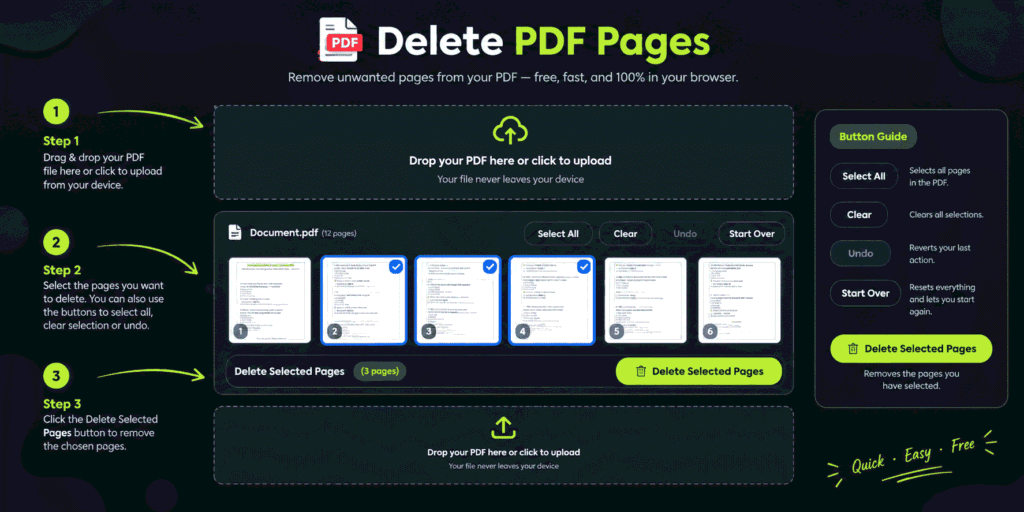
Step 2: Upload your PDF
Click the upload button and choose your PDF. You can also drag and drop the file onto the page.
- What to show: screenshot of the upload area with a PDF being dragged in
- File name: upload-pdf-to-delete-pages-online.webp
- Alt text: Uploading a PDF file to delete pages from a PDF online
- Caption: Start by uploading your PDF.
Step 3: Choose the pages to delete
Pick the pages you want to remove. Depending on the tool, you can click page thumbnails or type page numbers like 2, 5, 7-9. Double-check before you move on. Deleting the wrong page is the most common mistake.
Which Page Selection Options Can I Use?
Most tools let you remove a single page, several separate pages, or a whole range. Here are the common ways to enter them.
| What you want | How to type it | Example result |
|---|---|---|
| Delete one page | 3 | Page 3 is removed |
| Delete several pages | 2, 6, 9 | Pages 2, 6 and 9 are removed |
| Delete a range | 4-8 | Pages 4 to 8 are removed |
| Mix of both | 1, 5-7, 12 | Pages 1, 5, 6, 7 and 12 are removed |
| Keep only some pages | Choose the pages to keep, then extract them | Only those pages stay |
Page numbers follow the position in the file, not the number printed on the page. So if your PDF has a cover page, the page labeled “1” might actually be page 2 in the file. Always check the thumbnail.
Should I delete pages or extract pages?
Delete pages when you only want to drop a few. Extract pages when you only want to keep a few. The end result is the same: a smaller PDF with just the pages you need. Pick whichever option means less clicking for you.
What if It Still Doesn't Work?
Most problems come from password protection, a damaged file or a very large PDF. Try these fixes.
- The file is password protected. Remove the password first. You’ll need the correct password to do this.
- The upload fails. Check your internet connection and try again. Large files can take longer, and some tools set a file size limit.
- The wrong pages were removed. Re-upload your original PDF and repeat the steps with the correct page numbers.
- The PDF is scanned. Scanned files are just images inside a PDF. Pages can still be removed, but you may need to double-check the page order.
- The tool shows an error. Refresh the page, try another browser, or turn off extensions that block scripts.
- The file looks broken after download. Open it in a different PDF reader. Sometimes the problem is the viewer, not the file.
If nothing works, try saving the PDF again from its original program, such as Word, and repeat the process.
Can I Delete PDF Pages on Windows, Mac, Android and iPhone?
Yes. An online tool works on every device. Some devices also have built-in options.
Windows
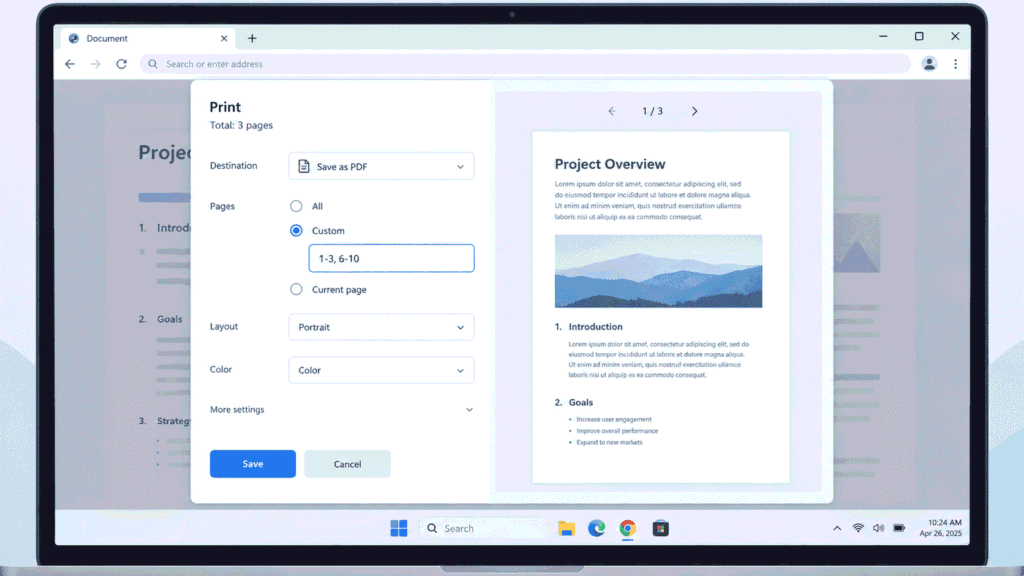
Use the online tool in Chrome or Edge. You can also open the PDF in your browser, press Ctrl + P, choose Save as PDF, and enter a custom page range for the pages you want to keep.
Mac
Open the PDF in Preview. Click View > Thumbnails, select the page, and press Delete. Then save the file. You can read more in Apple’s Preview guide.
Android
Open your browser, visit the tool, and upload the PDF from your phone storage. This is the easiest way to delete pages from a PDF on Android without installing an app.
iPhone
Open Safari, go to the tool, and upload your file from the Files app. Then download the new PDF and save it back to Files. This is a simple way to delete pages from a PDF on iPhone for free.
Can I do this without Adobe?
Yes. You don’t need Adobe Acrobat to remove pages. Adobe offers its own online tool to delete PDF pages, but free alternatives like FreeConvertzo, your browser or Mac Preview do the same basic job. Check each tool’s limits before you start.
Is It Safe to Delete Pages From a PDF Online?
It can be, if you follow basic safety habits. These are general tips, and they apply to any online tool.
- Read the website’s privacy policy before uploading private files.
- Don’t upload documents with highly sensitive data, like bank details, unless you trust the service.
- Keep a copy of your original file.
- Use a secure connection. Look for https in the address bar.
- Download your result right away and close the tab.
For very private files, an offline option like Mac Preview or your browser’s print-to-PDF feature keeps the file on your device.
FAQ
How do I delete specific pages from a PDF for free?
Upload your PDF to a free online page remover, select the pages you want to delete, and download the new file. It takes about a minute. You don’t need to install anything.
Can I remove pages from a PDF without losing quality?
Usually, yes. Removing pages doesn’t change the text or images on the pages you keep. Always open the new file and check it before you share it.
Can I delete multiple pages from a PDF at once?
Yes. You can enter several page numbers separated by commas, or a range like 4-8. This saves time when you have many pages to remove.
Will deleting pages reduce the file size?
Often it does, since the file has less content. But the exact size depends on what’s on the remaining pages. Large images can keep the file heavy even after removing a few pages.
Can I undo the page removal?
Not on the new file. But your original PDF stays unchanged, so you can upload it again and redo the process. That’s why we suggest saving the result under a new name.