
How to Number PDF Pages Starting From a Specific Page
You can number PDF pages starting from a specific page by choosing a start page and a start number in a page numbering tool. Pages before that point stay blank. This is the fix when your cover page shows “1” and you’d rather your first real page shows it. You can do it online with the free FreeConvertzo tools, or in Word or Acrobat.
[10 October 2026]
By [Paresh jena ]
Table of Contents
- Why does PDF page numbering start at the cover?
- How do I number PDF pages from a specific page online?
- What do the page number settings mean?
- How do I start PDF page numbers from page 3 (or any page)?
- What if it still doesn’t work?
- How do I do it on Windows, Mac, Android and iPhone?
- Is it safe to add page numbers online?
- FAQ
Why does PDF page numbering start at the cover?
Most tools count every page in the file, starting at 1. A PDF doesn’t know that your first page is a cover. It just sees page one.
So if you add numbers with a basic tool, the cover gets “1”, the contents page gets “2”, and your real first chapter gets “3”. That looks wrong in a thesis, report, ebook or legal file.
You’ve probably seen the standard layout. The cover has no number. The front matter uses Roman numerals or nothing. The main body starts at 1.
This is also why PDF page numbers not starting at 1 is such a common complaint. The numbers aren’t broken. They just follow the physical page order.
One-line definition: A start number is the number you want to appear on the first numbered page, and it can differ from that page’s real position in the file.
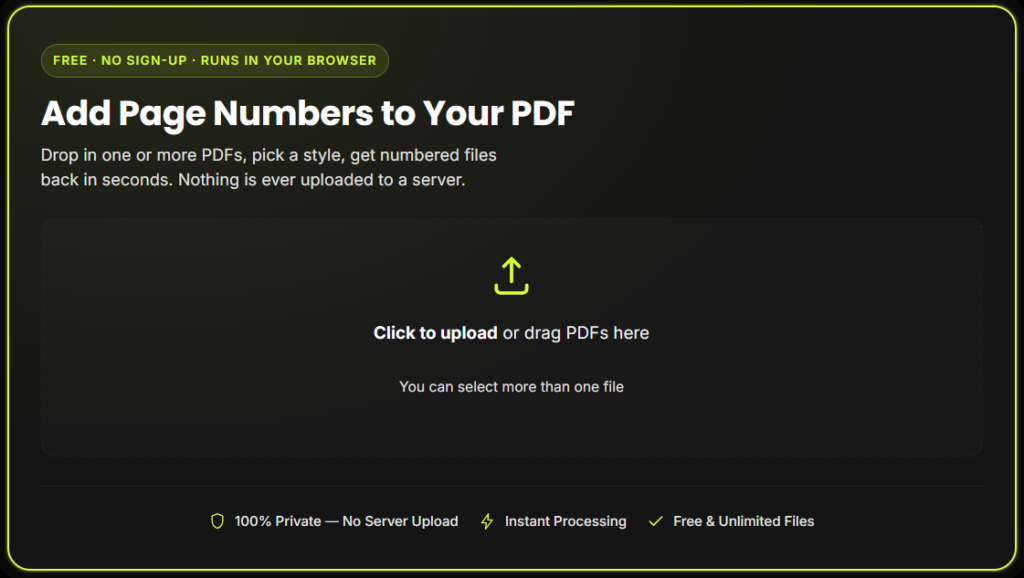
How do I number PDF pages from a specific page online?
Upload your PDF to an online page number tool, choose the first page you want numbered, set the starting number, and download the result. It takes about a minute.
Here’s the full process using the FreeConvertzo tool.
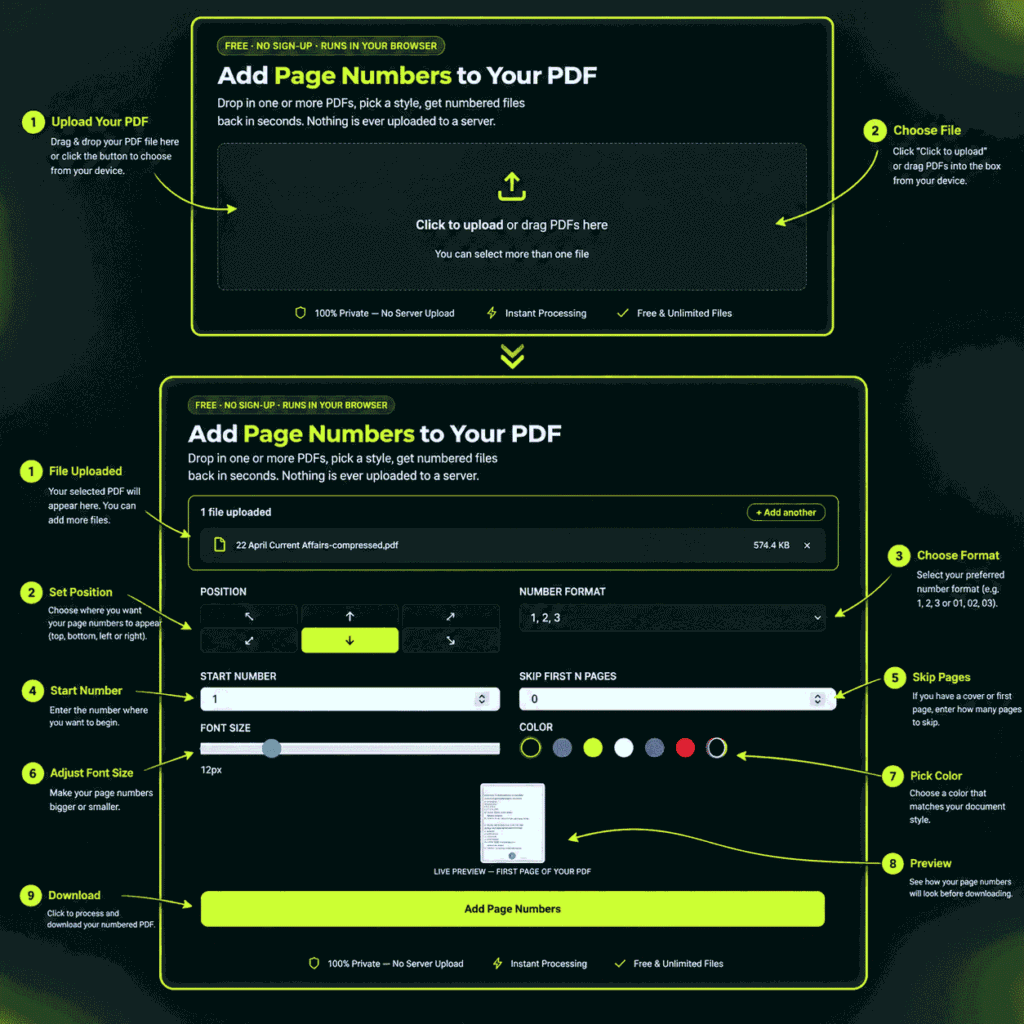
Step 1: Open the tool. Go to FreeConvertzo and open the page number tool.
Step 2: Upload your PDF. Drag the file in or browse for it. Wait until the page previews load.
Step 3: Choose the first page to number. If your cover is page 1 and you want numbering to begin on page 2, enter 2. For a cover plus a contents page, enter 3.
Step 4: Set the starting number. Most people use 1. If your front pages are counted as part of the document, you might use a different number.
Step 5: Pick position and style. Bottom center is the safest choice. Bottom right works well for printed, double-sided files.
Step 6: Apply and download. Check the preview before you save. Scroll to the first numbered page and confirm it shows the number you chose.
What do the page number settings mean?
Each setting controls one thing. Knowing them helps you get the result on the first try.
| Setting | What it does | Typical choice |
|---|---|---|
| First page to number | The page where numbering begins | 2 or 3 to skip the cover |
| Starting number | The number shown on that first page | 1 |
| Position | Where the number sits on the page | Bottom center |
| Font size | How big the number looks | 10–12 pt |
| Margin | Distance from the page edge | Leave default |
| Page range | Which pages get numbers | All pages after the start |
How do I start PDF page numbers from page 3 (or any page)?
Set the first page to number as 3, and the starting number as 1. Page 3 of the file then displays “1”.
Here are the common setups side by side.
| What you want | First page to number | Starting number |
|---|---|---|
| Skip cover only | 2 | 1 |
| Skip cover and contents | 3 | 1 |
| Skip cover, but keep the real count (page 2 shows “2”) | 2 | 2 |
| Skip a 5-page front section | 6 | 1 |
The third row confuses people. If you want numbers to match the real position in the file, set the start number equal to the first page number. If you want the first numbered page to read “1”, set the start number to 1.
What if it still doesn’t work?
Most problems come from one of a few causes. Check these in order.
- The number shows on the wrong page. You probably counted the PDF’s pages, not the printed ones. Open the file and count from the very first page, including the cover.
- Numbers overlap your text. Increase the margin or move the number to a different corner.
- Numbers are too small or too big. Change the font size. 10 to 12 points works for most documents.
- The numbers look fine on screen but wrong when printed. Some printers shrink pages to fit. Print at 100% or “actual size”.
- Some pages are missing numbers. Those pages may be scanned images with odd page sizes. Try a different position, such as bottom center.
- You applied numbers twice. Start again from your original PDF, not the already-numbered copy.
Tip: Always keep a copy of the original file. Page numbers are drawn onto the page, so you can’t always remove them cleanly later.
How do I do it on Windows, Mac, Android and iPhone?
An online tool works the same on every device because it runs in your browser. Native apps differ, so here’s the short version.
Windows and Mac (online): Use any browser. The steps above are identical.
Word (Windows and Mac): If your PDF started as a Word file, number it before exporting.
- Put your cursor at the end of the last page you want unnumbered.
- Go to Layout > Breaks > Next Page to create a new section.
- Double-click the footer of the new section and turn off Link to Previous.
- Open Insert > Page Number > Format Page Numbers, then choose Start at: 1.
Is it safe to add page numbers online?
It’s reasonable if you take basic care. Check how a site handles your files before you upload anything private.
General tips:
- Read the site’s privacy policy and look for how long files are kept.
- Don’t upload IDs, bank statements or signed contracts to a tool you haven’t checked.
- For sensitive files, use an offline app like Word or Acrobat on your own device.
- Use a secure connection (the address starts with
https://). - Delete downloaded copies you no longer need.
PDF is an open file format, which is why so many tools can read and edit it. You can read the background on Wikipedia’s PDF page.
FAQ
How do I number PDF pages starting from page 3?
Set the first page to number as 3 and the starting number as 1. Page 3 will show “1”, and pages 1 and 2 stay without numbers. This is the usual setup for a cover plus a contents page.
Can I make the cover page not show a number?
Yes. Start numbering from page 2 instead of page 1. The cover stays clean, and the numbers begin on the next page.
Why are my PDF page numbers not starting at 1?
Most tools count every page in the file. If your cover is page 1, your first real page becomes “2”. Choose a later start page and set the start number to 1 to fix it.
Can I remove page numbers I added by mistake?
Not always. Numbers are drawn onto the page, so you may not be able to take them off cleanly. Start again from your original file, which is why a backup helps.
Can I use Roman numerals for the front pages?
Some programs, like Word and Acrobat, support Roman numerals for front matter. Many simple online tools only add standard numbers. Check the options in your tool first.