
Crop PDF Without Losing Quality
Free Online PDF Cropper
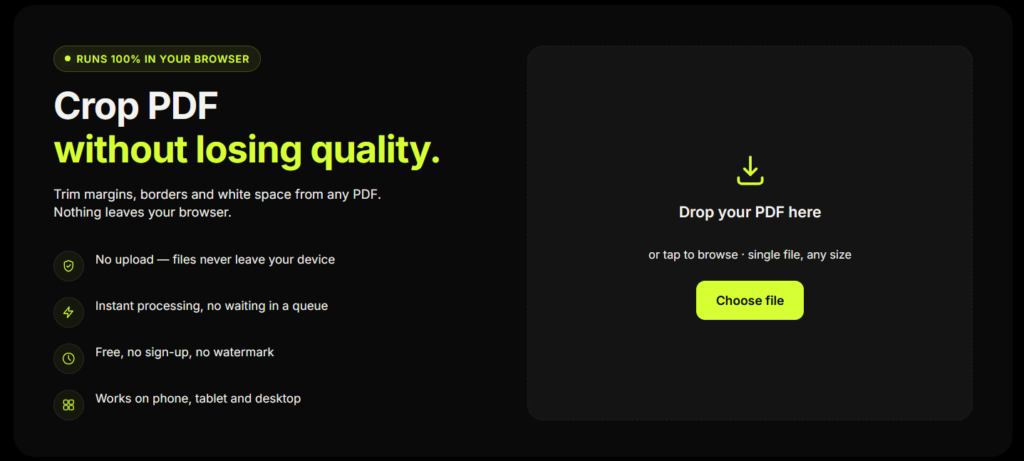
Crop PDF without losing quality — free, in your browser, in under a minute. This tool trims margins, borders, and white space while keeping text sharpness, image resolution, and formatting untouched. Nothing uploads to a server; your file never leaves your device.
Drop your PDF here
or tap to browse · single file, any size
How to Crop a PDF Without Losing Quality
Upload your PDF
Drag and drop your file or tap Choose file. Processed directly in your browser.
Auto-detect margins
The tool scans your page and finds the exact content boundary instantly.
Fine-tune manually
Drag corner or edge handles for a tighter or looser crop.
Crop & Download
Get your cropped PDF instantly at full original resolution.
Who Uses This Free PDF Cropper?
Students & researchers
Cropping scanned textbook pages
or lecture notes for easier reading.
Businesses
Cleaning up invoices, shipping
labels, or scanned contracts
before archiving.
Content creators
Trimming PDF exports of slides
or designs before sharing.
Anyone with a scanned document
That has wide, uneven
scanner margins.
Key Features
Crop PDF Without Losing Quality
Every crop only adjusts the page boundary, never the embedded content — so text stays vector-sharp and images stay at native resolution.
Auto-Detect Margins
One tap scans the page and finds the exact edge of your content, removing scanner borders, white space, and blank margins automatically.
100% Private — No Upload
The entire crop happens in your browser using client-side JavaScript. Your PDF is never transmitted to a server.
Crop All Pages or Page-by-Page
Apply one crop across your whole document, or set an individual crop for each page — perfect for scanned books and mixed layouts.
Works on Any Device
The interface is built mobile-first, so you can crop a PDF without losing quality just as easily from your phone as from a desktop.
Free, No Sign-Up, No Watermark
No account, no email, no usage limit, and absolutely no watermark on your downloaded output file.
Why Cropping a PDF Shouldn't Lower Its Quality
Most people assume cropping a PDF means the file gets re-processed, compressed, or "flattened" — and that this is where quality gets lost. That's true for some tools, but it doesn't have to be true for yours.
Every PDF page has a defined boundary called a CropBox (along with a MediaBox, TrimBox, and ArtBox), as specified in the ISO 32000 PDF standard maintained by the PDF Association. When you crop a PDF properly, the tool only updates this boundary — it tells PDF viewers and printers which area of the page to display. The original text vectors and embedded images behind that boundary are never resampled, recompressed, or redrawn.
That's exactly how this tool works. Because it edits the page's crop boundary directly instead of flattening the page into a new image, you can crop a PDF without losing quality — no blur, no pixelation, no shrinking of embedded images, regardless of how many times you crop or how small the final area is.
How This Tool Lets You Crop PDF Without Losing Quality
Many online PDF croppers upload your file to a server, redraw every page as an image, or limit how much you can crop for free. This tool takes a different route to crop PDF without losing quality: it works entirely in your browser and only changes each page’s crop boundary, so your text stays sharp, your images keep their original resolution, and nothing is ever uploaded. Auto-detect margins in one tap, draw the crop area yourself, set a different crop for every page, zoom in for precision, and undo any step. There are no sign-ups, no watermarks, and no daily limits, and it works the same on a phone as on a desktop.
Related PDF Tools
Get more done after cropping your PDF with these useful tools.
Compress PDF
Cropping hides margins but keeps the file size about the same. Compress your cropped PDF to make it easier to email or upload.
Compress your PDFRotate PDF Pages
Fix sideways or upside-down scanned pages before or after you crop them.
Rotate your pagesDelete PDF Pages
Remove blank or unwanted pages so only the pages you cropped stay in the file.
Delete unwanted pagesScanned PDF to Searchable PDF
After trimming scanner borders, run OCR so the text becomes searchable and copyable.
Make PDF searchableFAQ
Frequently Asked Questions
How do I crop a PDF without losing quality?
Use a tool that adjusts the PDF’s crop boundary instead of flattening the page into an image. This tool does exactly that: it changes only what’s visible on the page, never the underlying text or image data — so you can crop a PDF without losing quality, no matter how many times you re-crop it.
Why does my PDF look pixelated or blurry after cropping?
This usually happens when a tool “flattens” or rasterizes the page — converting sharp text and vector content into a single flat image — during the crop. This tool never does that. It only updates the page’s crop boundary (its CropBox), so your original resolution and text sharpness stay exactly the same.
Does cropping a PDF reduce its file size?
Not significantly. Cropping hides content outside the selected area — it doesn’t delete it — so file size stays roughly the same as the original. If a smaller file size matters more than exact-quality preservation, compress the file as a separate step after cropping.
Is this PDF cropper really free, with no watermark?
Yes — no cost, no sign-up, no page limits, and no watermark added to your downloaded file.
Can I crop only specific pages instead of the whole document?
Yes. Turn off “Apply to all pages” and set a different crop for each page individually — useful for scanned books or documents where each page has a different layout.
Can I undo or restore my PDF after cropping it?
With this tool, your original file is never modified — cropping always produces a new, separate PDF, so your original file is untouched and safe on your device at all times.